How to Automate Gmail with n8n: 5 Workflows You Can Build Today
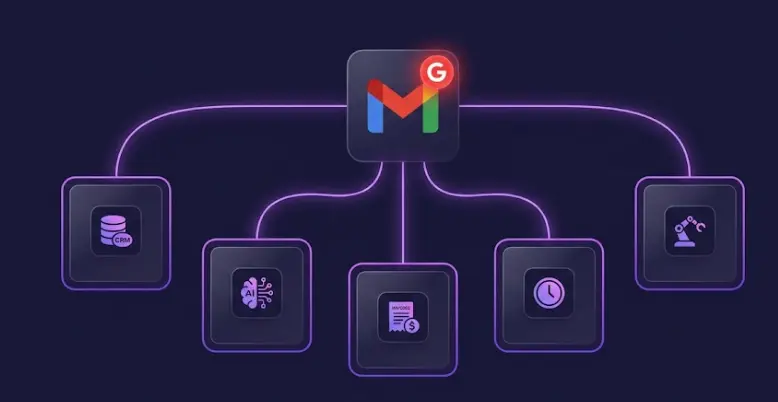
Gmail sits at the center of most business operations — leads arrive by email, invoices land in the inbox, customers send support requests, and follow-ups get forgotten. n8n connects all of it to your CRM, Slack, spreadsheets, and AI without any code. This guide skips the setup basics other tutorials repeat and goes straight to five complete, production-ready workflows — with the exact node chains, configuration gotchas, and the business context that makes each one sellable as a service.
Before you build: one thing most tutorials don't tell you
The n8n Gmail Trigger is a polling node, not a webhook. It checks your inbox on a schedule — minimum every 60 seconds on most n8n plans. There's no way to get a push notification from Gmail directly into n8n without setting up Google Pub/Sub (complex, cloud-only). For nearly all business automation use cases — lead routing, invoice processing, follow-up sequences — 60 seconds is fine. If you need truly real-time response (under 5 seconds), you need a different architecture.
Gmail sending limits: Free Gmail accounts can send 500 emails/day. Google Workspace accounts: 2,000/day. For higher volume, route sends through SendGrid or Postmark via HTTP Request node instead of the Gmail node.
Gmail OAuth setup in n8n (the fast path)
Every Gmail workflow starts with OAuth2 credentials. Here's the setup in the fewest steps:
Go to console.cloud.google.com → Create a new project → Enable the Gmail API under APIs & Services.
Create OAuth 2.0 Credentials (type: Web application). Add your n8n callback URL as an authorized redirect URI: https://your-n8n-domain/rest/oauth2-credential/callback
In n8n: Settings → Credentials → New → Gmail OAuth2 API. Paste your Client ID and Client Secret, click Connect, and approve access in the Google popup.
The same credential works for all Gmail trigger and action nodes. You only set this up once per Gmail account.
If you get "redirect_uri_mismatch" errors during OAuth, it's almost always because the redirect URI in Google Cloud Console doesn't exactly match what n8n sends. Check for trailing slashes, http vs https, or port numbers. The exact format n8n expects is https://YOUR_N8N_DOMAIN/rest/oauth2-credential/callback — copy it from the n8n credential setup screen, don't type it manually.
5 workflows in this guide
Email → CRM Contact + Slack Lead Alert
What it does
When a new email arrives at a specific address (your contact@ or sales@ inbox), n8n extracts the sender's name, email, and message body, creates or updates a contact in HubSpot or Pipedrive, then sends a formatted Slack message to the #leads channel with a direct link to the CRM record. The sales team gets notified within 60 seconds of the email landing — without checking their inbox manually.
Node chain
Key configuration
Gmail Trigger settings: Set "Filters" → "To" to your specific inbox (e.g., contact@yourcompany.com) so the trigger only fires on emails sent to that address, not your entire Gmail. Set poll interval to 1 minute for near-real-time response.
Code node for extraction: The Gmail Trigger returns the raw email object. Use a Code node to extract clean fields:
const email = $input.first().json;
return [{
  json: {
    senderName: email.from?.name || email.from?.email?.split('@')[0],
    senderEmail: email.from?.email,
    subject: email.subject,
    bodyText: email.text?.substring(0, 500), // first 500 chars
    receivedAt: email.date
  }
}];
HubSpot node: Use "Upsert Contact" (not "Create") — this updates the record if the email already exists, avoiding duplicates. Map senderEmail to the HubSpot email field.
Slack message format that works well in practice:
🔔 *New lead from email*
*Name:* {{ $json.senderName }}
*Email:* {{ $json.senderEmail }}
*Subject:* {{ $json.subject }}
*Preview:* {{ $json.bodyText }}
<{{ $('HubSpot').item.json.properties?.hs_object_url }}|View in HubSpot>
The Gmail Trigger fires on every new email matching your filter — including your own automated replies if they land in the same inbox. Add an IF node after the trigger to filter out emails where from.email contains your own domain, or where the subject starts with "Re:" or "Fwd:". This prevents the workflow from creating CRM contacts for your own team's internal emails.
Business value
Any B2B company receiving 5+ contact form or email leads per day benefits immediately. Lead response time dropping from "when someone checks email" to 60 seconds improves qualification rates significantly. For a client with a $2,000 average deal value closing at 8%, the business case for a $600 automation writes itself in the first week. This is also one of the best starter projects for new n8n freelancers — well-scoped, clear deliverable, and leads naturally to retainer work when the client wants to add more lead sources. See the automation ideas guide for the full ROI breakdown.
AI Email Classifier + Auto-Labeler
What it does
Every new email is sent to an LLM (GPT-4o or Claude) for classification. Based on the response, n8n applies a Gmail label, optionally moves the email to a specific folder, and — for urgent or high-priority emails — sends an immediate Slack alert so nothing slips through. The owner gets a structured inbox instead of a chaotic one, with zero manual effort.
Node chain
The classification prompt
The quality of this workflow lives entirely in the prompt. Generic prompts produce generic (wrong) results. Here's a production-tested structure:
System: You are an email classifier for [Business Name].
Classify the email below into EXACTLY ONE of these categories:
- LEAD: new potential customer inquiry
- SUPPORT: existing customer with a problem or question
- INVOICE: payment, billing, or financial document
- PARTNERSHIP: collaboration or business development inquiry
- SPAM: unsolicited or irrelevant
- INTERNAL: from a company email domain
- OTHER: does not fit above categories

Reply with ONLY the category label. No explanation.

Email From: {{ $json.from.email }}
Subject: {{ $json.subject }}
Body: {{ $json.text?.substring(0, 800) }}
After the OpenAI node, use a Switch node routing on {{ $json.message.content }} to branch to different Gmail label + Slack actions per category.
Creating Gmail labels in n8n
Labels must exist in Gmail before n8n can apply them — the node won't create a missing label, it will just fail silently. Create all your labels in Gmail first (Settings → Labels → Create new label), then reference them by exact name in the n8n Gmail "Add Label" action. Labels are case-sensitive.
LLMs occasionally return a category not in your list, or return "LEAD." with a period, or return "This email is a LEAD" instead of just "LEAD". Add a Code node after the OpenAI response to normalize the output: return [{ json: { category: $input.first().json.message.content.trim().toUpperCase().replace(/[^A-Z]/g,'') } }]. This strips punctuation and whitespace before the Switch node sees it.
Business value
Support teams at e-commerce, SaaS, and professional service companies spend 2–3 hours/day triaging email manually. A well-tuned classifier handles this in under 60 seconds per email with 90%+ accuracy after a few rounds of prompt refinement. This is the "AI email triage" idea covered in the n8n automation ideas guide — a $1,200–$3,000 project on Upwork with strong retainer potential because prompt tuning is ongoing work. For the AI agent fundamentals behind this, see the n8n AI agent tutorial.
Invoice / Receipt Parser → Google Sheets + Slack
What it does
When an email arrives with an invoice or receipt attachment (PDF or image), n8n downloads the attachment, extracts the document text, sends it to an LLM to parse structured data (vendor, amount, date, invoice number, due date), appends a row to the client's expense tracking Google Sheet, and sends a Slack notification to the finance channel. Month-end reconciliation drops from a multi-hour manual process to a 15-minute review of the auto-populated sheet.
Node chain
Filtering for invoice emails
Configure the Gmail Trigger with a search filter so it only fires on relevant emails. In the trigger's "Filters" → "Query" field, use Gmail search syntax:
subject:(invoice OR receipt OR bill OR statement) has:attachment
This filters for emails with "invoice," "receipt," "bill," or "statement" in the subject that also have an attachment. Combine with the sender filter if the client receives invoices only from known vendors.
PDF extraction + LLM parsing
The Gmail node's "Download Attachments" option returns binary data. Feed this into the Extract From File node (set to PDF mode) to get raw text. Then send to OpenAI with a structured extraction prompt:
Extract the following fields from this invoice/receipt text.
Return valid JSON only, no explanation:
{
  "vendor": "company that issued the invoice",
  "amount": "total amount as a number (no currency symbol)",
  "currency": "USD/EUR/GBP etc.",
  "date": "invoice date in YYYY-MM-DD format",
  "dueDate": "due date in YYYY-MM-DD or null if not found",
  "invoiceNumber": "invoice or receipt number",
  "description": "brief description of what was purchased"
}

Invoice text:
{{ $json.text }}
Parse the JSON response in a Code node with JSON.parse($input.first().json.message.content), then map each field to a Google Sheets column.
The Extract From File node reads text from text-based PDFs. Scanned invoices (image PDFs) return empty text because there's no embedded text layer. For scanned documents, you need a vision-capable API: send the PDF binary to OpenAI's vision endpoint or Google Vision API instead of the Extract From File node. Identify scanned PDFs by checking if the extracted text is under 50 characters — if it is, route to the vision path instead.
Business value
Businesses receiving 20+ invoices/month spend 2–4 hours/month on manual data entry into accounting software. At a bookkeeper's rate of $35–$50/hour, that's $70–$200/month in pure data entry labor — not counting errors and missed invoices. A $900 automation pays back in 4–12 months and runs forever. Accountants often refer this workflow to their SMB clients as a value-add, making them a strong referral source for n8n freelancers.
Turn these workflows into paid projects
The Upwork sales guide shows exactly how to position each of these workflows as a freelance service — profile setup, proposal scripts, and pricing strategy that gets clients to say yes.
Try the AI Apps Course FreeAutomated Follow-Up Sender (No-Reply Detection)
What it does
When the sales rep sends a proposal or quote (detected by subject line or label), n8n logs the email and waits 3 days. On Day 3, it searches the Gmail thread for any reply from the recipient. If no reply exists, it sends a follow-up email from the rep's Gmail account (in the same thread, so it appears as a continuation of the conversation). If a reply is found, the workflow stops — no follow-up sent. This removes the single biggest reason deals die: the rep forgot to follow up.
Node chain
Triggering on sent emails
The Gmail Trigger can watch the Sent folder by setting the "Label Names or IDs" filter to SENT. Combine with an IF node filtering on subject line keywords: {{ $json.subject.toLowerCase().includes('proposal') || $json.subject.toLowerCase().includes('quote') }}. Store the thread ID and recipient email in a Google Sheet row — you'll need these to check for replies later.
Detecting replies after the Wait node
After the Wait node fires, use the Gmail node in "Get Many" mode with a search query that looks for replies in the thread:
// Build the search query using stored thread data
const threadId = $('Google Sheets').item.json.threadId;
const recipient = $('Google Sheets').item.json.recipientEmail;

// Search for emails in the thread after the original send date
return [{
  json: {
    query: `in:anywhere thread:${threadId} from:${recipient}`
  }
}];
If the Gmail search returns 0 results → the IF node routes to the follow-up send branch. If results exist → workflow ends without sending.
The n8n Wait node pauses the workflow execution and resumes it after the specified time. If your n8n instance restarts during the wait period, workflows in progress may be lost depending on your queue mode settings. For production follow-up workflows, use n8n with a database backend (PostgreSQL) and queue mode enabled, or store the "send follow-up after date" in Google Sheets and use a separate Schedule Trigger that polls the sheet daily instead of relying on a long Wait node in a single execution.
Follow-up email that gets replies
The worst follow-up is "Just checking in on my proposal." It gets ignored. A follow-up that gets replies addresses a potential concern or adds new value:
Subject: Re: [Original Subject]

Hi [Name],

I wanted to make sure the proposal didn't land in your spam
folder. Happy to adjust the scope or timeline if anything
doesn't fit your current situation.

Also — I thought of one more thing that might be relevant
for your setup: [one specific, relevant observation about
their business from the original conversation].

Would a 15-minute call this week make sense?

[Name]
For a full sales follow-up automation including CRM integration, see the Sales Follow-Up Sequence in the automation ideas guide.
AI Reply Drafter (Human Reviews Before Send)
What it does
When a new email arrives matching specific criteria (customer support, sales inquiry, or any defined category), n8n sends the email content plus relevant context (customer history from CRM, past emails in the thread, relevant knowledge base articles) to an LLM. The LLM generates a complete, context-aware draft reply. n8n saves this as a Gmail draft — not sent automatically — and posts a Slack notification with the email summary and a link to review the draft in Gmail. The human reads the draft, edits if needed, and clicks Send. Email processing time per message: from 5–15 minutes to 90 seconds of review.
Node chain
The context-injection pattern
The difference between a generic AI reply and a useful one is context. Before the OpenAI node, fetch relevant information and inject it into the prompt:
System: You are a helpful email assistant for [Company Name].
Draft a professional, friendly reply to the email below.

CONTEXT ABOUT THIS SENDER:
- Customer since: {{ $('HubSpot').item.json.properties?.createdate }}
- Plan/tier: {{ $('HubSpot').item.json.properties?.hs_pipeline }}
- Last interaction: {{ $('HubSpot').item.json.properties?.notes_last_updated }}
- Open issues: {{ $('HubSpot').item.json.properties?.open_tickets_count }}

KNOWLEDGE BASE (relevant articles):
{{ $json.knowledgeBaseContext }}

INCOMING EMAIL:
From: {{ $json.from.email }}
Subject: {{ $json.subject }}
Body: {{ $json.text }}

Write a complete draft reply. Be specific to their situation.
Do not use generic phrases like "I hope this email finds you well."
End with a clear next step or question.
The knowledge base context requires a separate step — either a keyword search of a Notion database, an Airtable base, or a vector search if you've embedded your knowledge base. For the full AI agent approach with tool calling, see the n8n AI agent tutorial.
Creating a Gmail draft (not sending)
Use the Gmail node in "Create Draft" mode. Set the "Thread ID" field to {{ $('Gmail Trigger').item.json.threadId }} so the draft appears as a reply in the existing conversation thread, not as a new email. Set "To" to the original sender's email, and "Subject" to Re: {{ $('Gmail Trigger').item.json.subject }}.
The Gmail OAuth credential authenticates as a specific Google account. Drafts created by the workflow appear in that account's Drafts folder. If your client uses a shared support@ address managed via Google Groups, note that Gmail drafts created via API appear in the owner's Gmail, not in the Group inbox. For shared inboxes, use Google Workspace's Delegated Mailbox feature and authenticate with the shared mailbox credentials instead of the individual user's.
Business value
This is the premium Gmail workflow — the one that justifies senior n8n developer rates. A founder or customer success manager handling 30–50 emails/day spends 3–5 hours on email. With AI drafts ready in Gmail, that drops to 45–60 minutes of review and sending. The ROI is immediate and personal. As a freelance project, this prices at $1,200–$2,500 depending on the number of categories and the depth of context integration. Combine it with the classifier from Workflow 2 and the lead capture from Workflow 1 for a complete "smart inbox" system that commands $3,000–$4,000 total. See the n8n freelancing guide for how to position and price multi-workflow engagements.
Making Gmail workflows production-ready
Most Gmail automation tutorials stop at "it works in testing." Here's what separates a demo from a workflow your client can rely on daily:
Add a Slack notification on workflow error — in n8n, open the workflow settings and configure an "Error Workflow" that sends a Slack message when any node fails. This means the client knows within minutes if something breaks, instead of discovering it when a lead wasn't routed or an invoice wasn't logged.
Gmail API allows 250 quota units per second per user. Each read operation costs 5 units; sends cost 100. For workflows processing high email volume, add a Wait node (set to 1–2 seconds) between Gmail API calls to stay within quota. For workflows running on multiple accounts, each account has its own quota.
The Gmail Trigger can occasionally fire twice for the same email (especially right after n8n restarts). Add deduplication using a Google Sheets "check if email ID already processed" lookup before any action nodes. Store the Gmail message ID after processing; check it at the start of each run.
Gmail OAuth2 tokens expire. n8n handles token refresh automatically as long as the credential is set up correctly — but if the client revokes access (password change, security review) the workflow stops silently. Set up a daily test workflow that reads one email and sends a "✅ Gmail connection healthy" Slack message. If you stop seeing it, the connection needs re-authorizing.
More from the LearnForge automation series
Build all 5 workflows — and sell them
The LearnForge AI Apps course covers n8n from first workflow to production AI agents — the exact skills behind workflows 2, 3, and 5 on this list. Free first lesson, no credit card.
Start for Free