How to Build AI Agents with n8n — Step by Step (No Code)
Most people who discover n8n's AI Agent node treat it as a smarter version of a standard LLM API call — add a prompt, connect to the next step, done. That works for text generation, but it skips the point entirely. The reason to use the AI Agent node isn't smarter output. It's the loop: the agent can take actions, observe results, and decide what to do next before it answers. This guide walks through building that loop correctly, from a basic first agent to a production-ready support workflow with memory and live data access.
In this article
- What the AI Agent node is actually doing
- Building your first agent — step by step
- System prompts that actually work
- Adding memory: the step most tutorials skip
- Connecting tools: making the agent useful
- A production-ready support agent (full example)
- When things break — and they will
- When an agent is the wrong tool
- FAQ
What the AI Agent node is actually doing
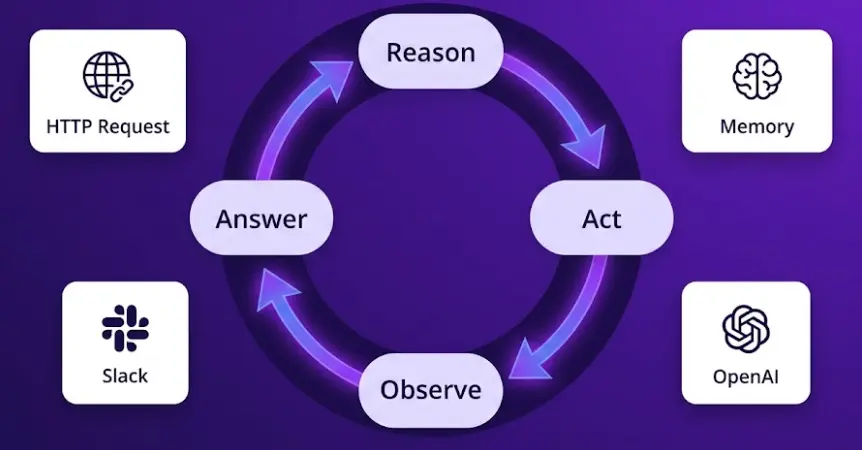
The regular LLM node in n8n is a single API call with no state: you send a prompt, get back text, the workflow moves on. The AI Agent node runs a different pattern — the ReAct loop (Reasoning + Acting), which is the same pattern that drives agents in LangChain, AutoGPT, and most production AI systems today.
In practice, this means the agent can do things in sequence based on what it learns. A support agent receives a customer message about a missing order. It reasons that it needs the order details before answering. It calls the "Get Order" tool (an HTTP Request to your fulfillment API). It reads the response — order is in transit, last scanned in Dallas — and uses that live data to write an accurate, specific reply. No hallucinated shipping dates. No generic "please contact support."
n8n's implementation of this is built on LangChain under the hood, which means it inherits LangChain's tool calling format. The model sees your tools as a structured list with names and descriptions, and it chooses which ones to call based on what the task requires. The quality of those tool descriptions turns out to matter enormously — more on that in the tools section.
One setting to know before you start: Max Iterations. This caps how many Reason → Act → Observe cycles the agent can run per execution. The default is 10. For most support or lookup tasks, 3–5 iterations is plenty. If you set it too low, the agent stops mid-task; too high, and a poorly-configured agent can run expensive loops. For initial development, leave it at 10; in production, dial it down to match your use case once you understand the real iteration count.
Building your first agent — step by step
The simplest useful agent: a customer FAQ bot that responds to messages in a Slack channel or via a webhook. No memory, no external tools — just the agent with a well-configured system prompt. This is the right starting point because it lets you understand how the model behaves before you add complexity.
Create the workflow and add a trigger
Start a new workflow. Add a Chat Trigger node (found under Triggers → Chat). This built-in trigger creates a simple chat interface you can use for testing — it appears as a floating chat widget in n8n's execution UI. For production, you'd replace this with a Webhook trigger or a Slack trigger, but Chat Trigger is the fastest way to test agent behavior without setting up external webhooks.
If you're connecting to Slack: add the Slack trigger node instead, set it to listen for "Message Posted" events in a specific channel. The incoming message payload lands in {{ $json.event.text }} — you'll reference this when wiring up the agent input.
Add the AI Agent node
Search for "AI Agent" in the node panel and add it. Connect it to your trigger. In the configuration panel, you'll see three main sections: Model, Prompt, and (optionally) Memory and Tools. The only required ones to start are Model and Prompt.
Under Source (the prompt input), change the dropdown to "Connected Chat Messages" if you're using the Chat Trigger — this automatically maps the incoming message. If you're using a Webhook or Slack trigger, select "Define below" and reference the message field from the previous node: {{ $('Slack Trigger').item.json.event.text }}.
Connect a model
Click the model connector at the bottom of the AI Agent node. Add an OpenAI Chat Model node (or Anthropic if you prefer Claude). Set the model to gpt-4o. For initial testing, this is the right call — it handles tool calling and multi-step reasoning more reliably than gpt-4o-mini, and the cost per test execution is negligible (typically 1–3 cents).
Temperature 0.3 is worth noting specifically. The default of 1.0 introduces too much variability in tool selection — you'll see the agent choose different tools for the same input on repeated runs, which makes debugging painful. Lower temperature means more deterministic decisions. You can raise it slightly once the agent is stable in production.
Write the system prompt
This is the highest-leverage configuration in the entire agent setup. The system prompt tells the agent who it is, what it knows, and how to behave when it doesn't know something. A vague prompt like "You are a helpful assistant" produces vague results. For a customer support agent, a well-structured system prompt might look like:
You are the support assistant for Acme Store. You answer customer questions about orders, returns, shipping, and products.

Company context:
- Orders ship within 2 business days via DHL Standard
- Returns accepted within 30 days, items must be unused
- Standard shipping takes 5–7 business days; express takes 2
- Customers can track orders at acme.com/track using their order number

Rules:
- If you don't have enough information to answer accurately, say so and ask the customer for their order number or email
- Never make up shipping dates, order statuses, or policies not listed above
- Keep replies under 120 words
- Use plain language, no jargon
The "Rules" section is what separates a reliable agent from a hallucinating one. Explicitly stating what the agent should NOT do (make up dates, invent policies) reduces the failure modes significantly. The word limit keeps responses focused and prevents the model from padding short answers with unnecessary text.
Test with real inputs before connecting anything else
Run the workflow in test mode and send a few realistic customer messages through the Chat Trigger. Test the edge cases your system prompt doesn't cover: "Can I return a used item?", "I ordered 3 days ago, where's my order?" (no order number given), "Do you ship to Alaska?". The agent's responses to these cases reveal gaps in your system prompt faster than any amount of planning.
At this stage, the agent only knows what's in the system prompt — no real data, no external lookups. This is intentional. Get the baseline behavior right before adding tools, because tools multiply the surface area for problems.
System prompts that actually work
The two most common system prompt failures: (1) too broad — the agent doesn't know when to stop and ask for clarification; (2) too detailed — the prompt becomes so long that the model starts ignoring parts of it when the context window fills with conversation history.
The structure that works reliably in production has four components: role and context (who the agent is and what it serves), what it knows (the static facts it can answer from without tools), what tools it has (briefly described, so the agent understands when to use them), and behavioral constraints (format of replies, what to do when uncertain, escalation rules).
Two specific patterns worth noting. First, explicit uncertainty handling — "If you cannot answer from the information available to you, respond with 'I need to check on that' and specify what information you'd need from the customer." This prevents the model from guessing confidently when it should be asking. Second, output format constraints — "Always structure your final response as a single paragraph, no bullet points, under 150 words." Agents left to their own devices tend to over-format with headers and lists, which looks wrong in a chat interface.
Token budget and prompt length. GPT-4o has a 128K context window, but your system prompt + tool descriptions + conversation history all count against it. A 2,000-token system prompt with a 10-message window buffer and 400 tokens per exchange leaves about 119,600 tokens — effectively unlimited for most cases. The problem appears when teams paste entire product documentation (50K tokens) into the system prompt. The model technically has access to it, but attention mechanisms struggle to reliably retrieve specific facts from very long contexts. Keep the system prompt under 1,500 tokens; put large reference material in a tool that the agent can query selectively.
Adding memory: the step most tutorials skip
Without memory, every message to your agent starts a fresh conversation. The customer says "I have a problem with my order," the agent asks for the order number, the customer provides it — and then, if they ask a follow-up question two messages later, the agent has no idea what order they were talking about. This is the behavior that makes users feel like they're talking to a particularly forgetful chatbot.
Memory in n8n works by attaching a Memory node to the AI Agent node's memory port (the small connector at the bottom). n8n offers three memory types, each suited to a different stage of deployment:
Window Buffer
Development- Stores last N messages in memory
- Lost when workflow restarts
- No setup required
- 10-message window covers most conversations
Redis Chat
Production- Persistent across restarts
- Fast read/write (<1ms)
- Requires Redis instance
- Sessions expire automatically via TTL
Postgres Chat
At Scale- Full history stored in database
- Queryable — can build conversation analytics
- Requires Postgres connection
- Best for compliance / audit requirements
The configuration that most guides miss is the Session ID. Without it, all users share the same memory — user A's order number bleeds into user B's conversation. The Session ID field in the memory node should be set to a unique identifier per user or conversation: for Slack, use the channel ID + user ID combination ({{ $json.event.channel }}_{{ $json.event.user }}); for a web chat, pass a UUID from the frontend; for email, use the email thread ID. This single configuration decision separates a toy agent from one that actually works in multi-user production.
Window size trade-off. The Window Buffer Memory's default window of 10 messages means the agent has access to the last 10 exchanges. For support conversations, this is usually sufficient — most issues resolve in under 5 exchanges. For more complex advisory workflows (e.g., a multi-session consulting agent), you may want 20–30. Each additional message in the window adds tokens to every API call — at GPT-4o pricing ($2.50/1M input tokens), a 10-message window adds roughly $0.002 per exchange. Negligible for most use cases, but worth tracking if you're running high volume.
For initial development, use Window Buffer Memory. Once the agent behavior is stable and you're moving to production, switch to Redis Chat Memory — add a Redis connection, set the TTL to 24 hours (or whatever makes sense for your use case), and the memory becomes persistent across n8n restarts and workflow updates.
Build AI-Powered Apps with n8n — Step by Step
Our AI Apps course teaches you to build real AI workflows and applications with n8n — from your first agent to production deployments with memory, tools, and custom interfaces. Module 0 is completely free.
Start Free Lesson →Connecting tools: making the agent useful
Tools are what separate an AI agent from a standard chatbot. The agent node's tool port (the third connector) accepts any number of connected tool nodes — and the model decides which ones to call, and when, based on their descriptions. You can connect n8n's built-in tool nodes, use HTTP Request as a tool (to call any external API), or point to another n8n workflow as a sub-agent tool.
Built-in tools
n8n ships with several tools that can connect directly to the agent: Calculator (for arithmetic that LLMs frequently get wrong), Wikipedia (real-time lookup), Wolfram Alpha (computation and fact-checking), and SerpAPI (web search). These are the easiest starting point — add one, connect it to the agent's tool port, and the agent can use it. No configuration needed beyond an API key for search tools.
The Calculator tool is often overlooked but surprisingly valuable. LLMs are unreliable at arithmetic — GPT-4o can confidently return a wrong subtraction result when the inputs are multi-digit numbers. For any agent that handles pricing, quantities, dates, or numeric lookups, the Calculator tool ensures the math is always correct. Connecting it adds one node and costs nothing.
HTTP Request as a tool
This is the pattern you'll use most in production. The HTTP Request tool node lets the agent call any external API — your CRM, your fulfillment system, your database via an API endpoint, your custom internal tool. The key configuration: the Tool Description field. This is what the agent reads to decide when to call this tool. Write it precisely.
A weak description: "Gets order information." The agent doesn't know when this applies vs. other tools, or what input it requires.
Use this tool to retrieve the status, tracking number, and delivery estimate for a customer order.
Required input: the customer's order number (format: ORD-XXXXX).
Returns: order status (processing/shipped/delivered/returned), carrier, tracking number, expected delivery date.
Call this tool when: the customer asks about their order status, wants to track a shipment, or mentions an order number.
The "When to call this tool" instruction at the end is the most important part. Without it, the agent sometimes calls the tool unnecessarily (wasting API budget) or skips it when it should use it. Explicit triggering conditions make tool selection reliable.
n8n workflow as a tool
The most powerful pattern for complex agents: any existing n8n workflow can be connected as a tool via the Call n8n Workflow tool node. This means you can build specialized sub-workflows — one that queries your database, one that checks inventory, one that runs a multi-step lookup — and the agent calls them as black-box tools. The agent doesn't need to know how the workflow works internally; it just calls it with an input and receives an output.
This architecture also makes testing much easier. You test the sub-workflow in isolation, confirm it returns correct results, and then connect it to the agent. Any bug in the sub-workflow is isolated to that workflow; you don't need to re-run the entire agent loop to debug it.
How many tools should an agent have? The practical limit is 5–7. Beyond that, the model's ability to consistently choose the right tool degrades — it starts calling irrelevant tools or skipping relevant ones. If your use case genuinely requires 10+ tools, consider splitting the agent into specialized sub-agents: a billing agent, a shipping agent, a product agent — and use a routing workflow to direct incoming requests to the right one.
A production-ready support agent (full example)
Here's how all the components come together in a real deployment. This is a customer support agent for an e-commerce business, handling tier-1 support via a chat widget on the website. It can answer general questions from its system prompt, look up order status via API, and escalate complex cases to a human agent in Slack.
Full workflow structure
The escalation detection step after the agent is worth explaining. The agent's system prompt instructs it to include a specific flag in its output when escalation is needed: "If the issue cannot be resolved in this conversation (damaged item, payment dispute, address change), include the text [ESCALATE] somewhere in your response." The IF node checks for this string. If found, the full conversation context is posted to the #support-escalations Slack channel with the customer's details and conversation history, so a human can pick it up without asking the customer to repeat themselves.
Before this agent went live, the team handled tier-1 support manually — about 80 tickets per week, averaging 8 minutes each. The agent now handles ~65% of those without escalation. The remaining 35% escalates to human agents with full context. Total manual support time dropped from 10+ hours per week to roughly 3.5 hours, with first-response time going from average 4 hours to under 30 seconds.
The Order Lookup tool makes about 30% of conversations accurate in a way a static system prompt never could be — because it's pulling real-time data from the fulfillment API, not guessing from training data. That's the core value proposition of agents over standard LLM calls: when accuracy depends on current information, the agent fetches it.
When things break — and they will
The four failure modes that appear most in production n8n agent deployments, and how to fix each one:
The agent loops without answering
The agent keeps calling tools or reasoning without producing a final answer. Usually caused by a system prompt that doesn't define when the task is "done," or by tools that return formats the model can't parse cleanly.
Fix: Add a completion condition to your system prompt ("Once you have the information needed to answer the customer's question, provide the answer directly and stop."). Also check the tool output format — if an HTTP Request tool returns HTML instead of JSON, the model may loop trying to parse it. Add a response filter in the HTTP Request node to extract only the relevant JSON fields before passing data to the agent.
The agent calls the wrong tool
The agent uses the Order Lookup tool for a returns policy question, or skips using any tool when it clearly should. Almost always a tool description problem — the descriptions are either too similar, too vague, or don't specify the input format.
Fix: Add "Do NOT use this tool for: [specific exclusions]" to each tool's description. Make the tool names more distinctive — "lookup_order_by_number" and "get_return_policy_text" are clearer than "Order" and "Returns." Run 20+ test cases in the execution history and look for patterns in wrong tool selection.
Context window exceeded on long conversations
The workflow throws a token limit error mid-conversation. Happens when memory window size × average message length × tool output size exceeds the model's context limit. Most common with the Postgres Chat Memory set to "no limit" on long sessions.
Fix: Cap the window at 10–15 messages. Truncate tool outputs — if an HTTP Request returns a 5,000-word product description, filter it down to the relevant fields before passing it to the agent. Consider summarization: a separate LLM node that periodically summarizes conversation history into a compact form, which gets injected back into the system prompt.
The agent hallucinates facts not in any tool
The agent confidently states specific prices, dates, or product details that are wrong — because it drew on training data rather than your tools. This happens when the system prompt doesn't restrict the agent to its available tools for factual claims.
Fix: Add to the system prompt: "Only state specific prices, dates, quantities, or order statuses if you retrieved them from a tool call in this conversation. If you haven't retrieved it via a tool, say you'd need to look it up." This forces the agent to either use tools or acknowledge uncertainty, eliminating confident hallucination.
n8n's execution history is the primary debugging tool — you can see every iteration of the agent loop, which tools were called with what inputs, and what each tool returned. Open the execution log for a failed run and step through the loop iterations one by one. The issue is almost always visible in the second or third iteration.
When an agent is the wrong tool
Agents add latency, cost per execution, and debugging complexity that a simpler workflow doesn't. They're worth it when the task genuinely requires dynamic decision-making — when the sequence of steps depends on intermediate results. They're not worth it when the task is predictable.
Use a regular LLM node (not an agent) for: email classification (is this a billing question, a support question, or spam?) — the input is one email, the output is one category, no tools needed. Tone rewriting — takes a text, outputs a rewritten version. Single-field extraction — pull the invoice amount from a PDF text. These are single-step transformations. Agents would add latency and cost without benefit.
Use an AI agent for: tasks where the answer depends on information you need to retrieve dynamically. Tasks where the right sequence of steps depends on what was found in a previous step. Conversational interfaces where the agent needs to maintain context across exchanges. Multi-step research — find information, evaluate it, decide whether to dig deeper or return.
Don't use agents for critical write operations. An agent that can CREATE, UPDATE, or DELETE records in a production database is a significant risk — prompt injection via user input can manipulate what the agent writes. If the task involves writing to a database or sending messages externally, have the agent produce a structured JSON output, then route that output through a separate n8n workflow that validates and executes the action. The agent generates intent; a separate, validated workflow executes it.
Frequently Asked Questions
What is the difference between an n8n AI Agent and a regular LLM node?
The regular LLM node is one API call: prompt in, text out. The AI Agent node runs a loop — it can reason about the task, call a tool, look at the result, and decide whether to call another tool or return a final answer. The loop is what makes it an agent. Practically: an agent can look up a live order status before answering a customer; a regular LLM node can't do that in a single pass.
Does building an AI agent in n8n require coding?
No. The AI Agent node, memory nodes, and tool nodes are all configured through n8n's visual interface. You don't write code unless you want a custom tool that does something none of the built-in nodes cover. For 80% of real agent use cases — customer support, data lookup, email classification, document Q&A — everything is configured visually through dropdowns and text fields.
Which AI model should I use for n8n agents?
For most production agents: GPT-4o or Claude 3.5 Sonnet. Both handle tool calling reliably, which is the critical capability. GPT-4o-mini works for simple classification but struggles with multi-step reasoning. Avoid models smaller than these for agents that need to decide between multiple tools — they tend to call the wrong tool or skip tool use entirely when they should be using it.
How do I give an n8n AI agent access to my database or internal data?
The cleanest approach: build a separate n8n sub-workflow that queries your database and returns the result as JSON, then connect it to the agent as a Tool via the "Call n8n Workflow" tool node. The agent calls this tool by name when it decides it needs the data. The sub-workflow handles all the database logic — the agent just calls it and reads the output. No direct database connection from the agent node is needed, and you can test the sub-workflow independently.
Related Articles
n8n Tutorial for Beginners: Build Your First Workflow in 20 Minutes
Webhook → Google Sheets → Slack from scratch. A real automation in one session, even with no prior n8n experience.
n8n Automation: 15 Real-World Examples That Save Hours Every Week
CRM automation, AI email routing, invoice processing, e-commerce workflows — 15 examples with exact node setups.
n8n Review 2026: Is It Really the Best Automation Tool?
Honest assessment of n8n's real capabilities, AI features, pricing, and where it genuinely falls short compared to Zapier and Make.
Ready to Build Your First AI Agent?
The LearnForge AI Apps course walks you through building real AI-powered applications with n8n — agents, memory, tools, and full app deployments. Start with Module 0 for free, no credit card required.
Start Free Lesson →