25 Useful Python Automation Scripts: Real Examples for 2026
A practical collection of Python automation scripts you can copy, adapt, and run today. Files, email, Excel, web, PDF, scheduling — every script is real, tested, and under 40 lines.
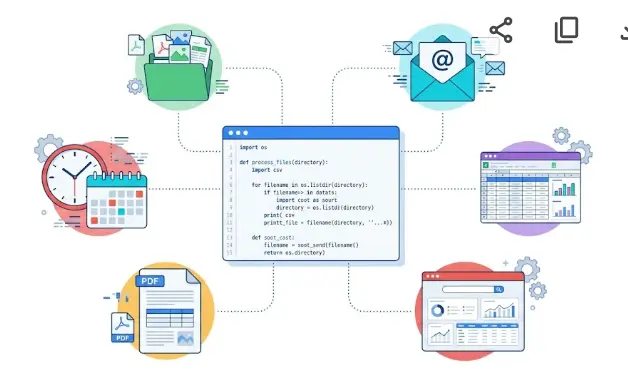
What's in This Guide
📁 File & Folder Automation Scripts
No extra packages needed — all built-in Python.
Auto-Organize Downloads Folder by File Type
Scans a folder and moves every file into a subfolder based on its extension. Run it once manually or schedule it daily.
import shutil
from pathlib import Path

FILE_TYPES = {
    "Images":    [".jpg",".jpeg",".png",".gif",".webp",".heic"],
    "Documents": [".pdf",".doc",".docx",".txt",".pages"],
    "Sheets":    [".xls",".xlsx",".csv",".numbers"],
    "Videos":    [".mp4",".mov",".avi",".mkv"],
    "Archives":  [".zip",".rar",".tar",".gz"],
}

def organize(folder: str) -> None:
    src = Path(folder)
    for f in src.iterdir():
        if f.is_dir(): continue
        cat = next((k for k,v in FILE_TYPES.items() if f.suffix.lower() in v), "Other")
        dest = src / cat
        dest.mkdir(exist_ok=True)
        shutil.move(str(f), str(dest / f.name))
        print(f"✅ {f.name} → {cat}/")

organize("/Users/yourname/Downloads")Bulk Rename Files with a Date Prefix
Adds today's date as a prefix to every file in a folder. Perfect for versioned exports, invoices, or reports.
import datetime
from pathlib import Path

folder = Path("/Users/yourname/Reports")
today  = datetime.date.today().strftime("%Y-%m-%d")

for f in folder.glob("*.pdf"):
    new_name = f"{today}_{f.name}"
    f.rename(folder / new_name)
print(f"Renamed: {f.name} → {new_name}")Find and Remove Duplicate Files
Detects true duplicates by comparing MD5 file hashes — not just filenames. Prints groups for review before deleting.
import hashlib
from pathlib import Path
from collections import defaultdict

def md5(path):
    h = hashlib.md5()
    with open(path, "rb") as f:
        for chunk in iter(lambda: f.read(8192), b""): h.update(chunk)
    return h.hexdigest()

def find_dupes(folder):
    seen = defaultdict(list)
    for f in Path(folder).rglob("*"):
        if f.is_file(): seen[md5(f)].append(f)
    for files in seen.values():
        if len(files) > 1:
            print("🔁 Duplicates:")
            for f in files: print(f"   {f}")
            # Delete all but first: [f.unlink() for f in files[1:]]

find_dupes("/Users/yourname/Downloads")Automated Folder Backup to ZIP
Creates a timestamped ZIP archive of any folder. Run daily to keep dated backups.
import shutil, datetime
from pathlib import Path

SOURCE  = Path("/Users/yourname/Projects/myproject")
BACKUPS = Path("/Users/yourname/Backups")
BACKUPS.mkdir(exist_ok=True)

stamp   = datetime.datetime.now().strftime("%Y-%m-%d_%H-%M")
archive = BACKUPS / f"backup_{stamp}"

shutil.make_archive(str(archive), "zip", str(SOURCE))
print(f"✅ Backup saved: {archive}.zip")Archive Files Older Than N Days
Moves files not modified in over 90 days to an archive folder. Keeps working directories clean automatically.
import shutil, datetime
from pathlib import Path

FOLDER  = Path("/Users/yourname/Work")
ARCHIVE = FOLDER / "_Archive"
DAYS    = 90
ARCHIVE.mkdir(exist_ok=True)

cutoff = datetime.datetime.now() - datetime.timedelta(days=DAYS)

for f in FOLDER.iterdir():
    if f.is_dir(): continue
    mtime = datetime.datetime.fromtimestamp(f.stat().st_mtime)
    if mtime < cutoff:
        shutil.move(str(f), str(ARCHIVE / f.name))
print(f"📦 Archived: {f.name}")Watch a Folder and Auto-Sort New Files (watchdog)
Runs silently in the background and sorts every new file the moment it lands in the watched folder.
# pip install watchdog
import time, shutil
from pathlib import Path
from watchdog.observers import Observer
from watchdog.events import FileSystemEventHandler

WATCH  = Path("/Users/yourname/Downloads")
TYPES  = {".pdf":"Docs", ".jpg":"Images", ".png":"Images", ".mp4":"Videos"}

class Handler(FileSystemEventHandler):
    def on_created(self, event):
        if event.is_directory: return
        f    = Path(event.src_path)
        cat  = TYPES.get(f.suffix.lower(), "Other")
        dest = WATCH / cat
        dest.mkdir(exist_ok=True)
        shutil.move(str(f), str(dest / f.name))
        print(f"📂 {f.name} → {cat}/")

obs = Observer()
obs.schedule(Handler(), str(WATCH), recursive=False)
obs.start()
print("👁️ Watching... (Ctrl+C to stop)")
try:
    while True: time.sleep(1)
except KeyboardInterrupt:
    obs.stop()
obs.join()
📧 Email Automation Scripts
Uses Python's built-in smtplib. Works with Gmail, Outlook, and any SMTP server.
Send an Email with an Attachment
Send a formatted email with a PDF or any file attached. Works with Gmail App Passwords (enable 2FA first).
import smtplib, os
from email.mime.multipart import MIMEMultipart
from email.mime.text import MIMEText
from email.mime.base import MIMEBase
from email import encoders

SMTP_HOST = "smtp.gmail.com"
SMTP_PORT = 587
USER      = os.getenv("EMAIL_USER")   # from .env file
PASS      = os.getenv("EMAIL_PASS")   # Gmail App Password

msg = MIMEMultipart()
msg["From"]    = USER
msg["To"]      = "recipient@example.com"
msg["Subject"] = "Monthly Report - March 2026"
msg.attach(MIMEText("Hi,\n\nPlease find the report attached.\n\nRegards", "plain"))

# Attach a file
with open("report.pdf", "rb") as f:
    part = MIMEBase("application", "octet-stream")
    part.set_payload(f.read())
encoders.encode_base64(part)
part.add_header("Content-Disposition", 'attachment; filename="report.pdf"')
msg.attach(part)

with smtplib.SMTP(SMTP_HOST, SMTP_PORT) as server:
    server.starttls()
    server.login(USER, PASS)
    server.send_message(msg)
print("✅ Email sent.")Send Personalized Bulk Emails from a CSV
Read a list of contacts from a CSV and send each person a personalized email with their name and data filled in.
import csv, smtplib, os
from email.mime.text import MIMEText

# contacts.csv columns: name, email, amount
TEMPLATE = """Hi {name},

Your invoice for {amount} is due on April 1, 2026.
Please contact us if you have any questions.

LearnForge Team"""

with smtplib.SMTP("smtp.gmail.com", 587) as server:
    server.starttls()
    server.login(os.getenv("EMAIL_USER"), os.getenv("EMAIL_PASS"))

    with open("contacts.csv") as f:
        for row in csv.DictReader(f):
            msg = MIMEText(TEMPLATE.format(**row), "plain")
            msg["Subject"] = f"Invoice for {row['name']}"
            msg["From"]    = os.getenv("EMAIL_USER")
            msg["To"]      = row["email"]
            server.send_message(msg)
print(f"✅ Sent to {row['name']} ({row['email']})")Email Alert When a File Appears in a Folder
Watches a folder and sends you an email the moment a new file arrives. Useful for monitoring incoming reports or uploads.
# pip install watchdog
import time, smtplib, os
from pathlib import Path
from email.mime.text import MIMEText
from watchdog.observers import Observer
from watchdog.events import FileSystemEventHandler

def send_alert(filename):
    msg = MIMEText(f"New file detected: {filename}")
    msg["Subject"] = f"📁 New file: {filename}"
    msg["From"] = msg["To"] = os.getenv("EMAIL_USER")
    with smtplib.SMTP("smtp.gmail.com", 587) as s:
        s.starttls(); s.login(os.getenv("EMAIL_USER"), os.getenv("EMAIL_PASS"))
        s.send_message(msg)

class Watcher(FileSystemEventHandler):
    def on_created(self, event):
        if not event.is_directory:
            send_alert(Path(event.src_path).name)
            print("📧 Alert sent")

obs = Observer()
obs.schedule(Watcher(), "/Users/yourname/Incoming", recursive=False)
obs.start()
try:
    while True: time.sleep(1)
except KeyboardInterrupt: obs.stop()
obs.join()
📊 Excel & Data Automation Scripts
pip install openpyxl pandas
Generate a Formatted Excel Report from a CSV
Reads raw data from a CSV, creates a styled Excel file with a bold header row and column widths auto-fitted.
import pandas as pd
from openpyxl import load_workbook
from openpyxl.styles import Font, PatternFill, Alignment

df = pd.read_csv("sales_data.csv")
df.to_excel("report.xlsx", index=False)

wb = load_workbook("report.xlsx")
ws = wb.active

# Style header row
header_fill = PatternFill("solid", fgColor="1E40AF")
for cell in ws[1]:
    cell.font      = Font(bold=True, color="FFFFFF")
    cell.fill      = header_fill
    cell.alignment = Alignment(horizontal="center")

# Auto-fit column widths
for col in ws.columns:
    max_len = max(len(str(c.value or "")) for c in col)
    ws.column_dimensions[col[0].column_letter].width = max_len + 4

wb.save("report.xlsx")
print("✅ report.xlsx created.")Merge Multiple Excel Files into One
Combines all .xlsx files from a folder into a single master spreadsheet in seconds.
import pandas as pd
from pathlib import Path

folder = Path("/Users/yourname/Monthly_Reports")
frames = []

for f in sorted(folder.glob("*.xlsx")):
    df = pd.read_excel(f)
    df["source_file"] = f.name  # track origin
    frames.append(df)
    print(f"Loaded: {f.name} ({len(df)} rows)")

merged = pd.concat(frames, ignore_index=True)
merged.to_excel("merged_report.xlsx", index=False)
print(f"✅ Merged {len(frames)} files → {len(merged)} total rows.")Clean and Deduplicate a CSV Dataset
Removes duplicate rows, strips whitespace, standardizes column names, and fills missing values — in 10 lines.
import pandas as pd

df = pd.read_csv("raw_data.csv")
print(f"Before: {len(df)} rows")

# Clean column names
df.columns = df.columns.str.strip().str.lower().str.replace(" ", "_")

# Strip whitespace from all string columns
df = df.apply(lambda c: c.str.strip() if c.dtype == "object" else c)

# Remove exact duplicates
df = df.drop_duplicates()

# Fill missing numeric values with 0
df = df.fillna({c: 0 for c in df.select_dtypes("number").columns})

df.to_csv("clean_data.csv", index=False)
print(f"After: {len(df)} rows → clean_data.csv")Send a Weekly Summary Email from Excel Data
Reads an Excel file, calculates key stats, and emails a formatted plain-text summary every Monday morning.
import pandas as pd, smtplib, os
from email.mime.text import MIMEText

df    = pd.read_excel("sales.xlsx")
total = df["revenue"].sum()
count = len(df)
top   = df.nlargest(3, "revenue")[["name","revenue"]].to_string(index=False)

body = f"""Weekly Sales Summary
======================
Total revenue:  ${total:,.2f}
Total orders:   {count}

Top 3 by revenue:
{top}
"""

msg = MIMEText(body)
msg["Subject"] = "📊 Weekly Sales Summary"
msg["From"]    = os.getenv("EMAIL_USER")
msg["To"]      = "boss@company.com"

with smtplib.SMTP("smtp.gmail.com", 587) as s:
    s.starttls(); s.login(os.getenv("EMAIL_USER"), os.getenv("EMAIL_PASS"))
    s.send_message(msg)
    print("✅ Weekly summary sent.")
🌐 Web & API Automation Scripts
pip install requests beautifulsoup4 playwright
Scrape Product Prices from a Website
Pulls product names and prices from a static HTML page and saves them to CSV for tracking over time.
import csv, requests
from bs4 import BeautifulSoup

URL = "https://example-shop.com/products"
HDR = {"User-Agent": "Mozilla/5.0"}

soup  = BeautifulSoup(requests.get(URL, headers=HDR).text, "lxml")
items = []

for card in soup.select(".product-card"):
    name  = card.select_one(".product-name")
    price = card.select_one(".product-price")
    if name and price:
        items.append({"name": name.text.strip(), "price": price.text.strip()})

with open("prices.csv", "w", newline="") as f:
    csv.DictWriter(f, fieldnames=["name","price"]).writerows(items) if items else None
    if items: list(csv.DictWriter(f, fieldnames=["name","price"]).writeheader() or [])

import pandas as pd
pd.DataFrame(items).to_csv("prices.csv", index=False)
print(f"✅ {len(items)} products → prices.csv")Price Drop Alert Script
Checks a product page every hour. Sends an email alert when the price drops below your target threshold.
import requests, smtplib, os, time, re
from bs4 import BeautifulSoup
from email.mime.text import MIMEText

URL       = "https://example-shop.com/product/123"
TARGET    = 49.99   # alert if price drops below this
CHECK_SEC = 3600    # check every hour

def get_price():
    soup  = BeautifulSoup(requests.get(URL, headers={"User-Agent":"Mozilla/5.0"}).text, "lxml")
    price = soup.select_one(".price")
    return float(re.sub(r"[^\d.]", "", price.text)) if price else None

def alert(price):
    msg = MIMEText(f"Price dropped to ${price:.2f}!\n{URL}")
    msg["Subject"] = f"🔔 Price Alert: ${price:.2f}"
    msg["From"] = msg["To"] = os.getenv("EMAIL_USER")
    with smtplib.SMTP("smtp.gmail.com", 587) as s:
        s.starttls(); s.login(os.getenv("EMAIL_USER"), os.getenv("EMAIL_PASS"))
        s.send_message(msg)

while True:
    p = get_price()
    print(f"Current price: ${p}")
    if p and p < TARGET:
        alert(p); break
time.sleep(CHECK_SEC)Download All Images from a Web Page
Scrapes every image URL from a page and downloads them all to a local folder.
import requests
from bs4 import BeautifulSoup
from pathlib import Path
from urllib.parse import urljoin

URL    = "https://example.com/gallery"
OUTDIR = Path("downloaded_images")
OUTDIR.mkdir(exist_ok=True)
HDR    = {"User-Agent": "Mozilla/5.0"}

soup = BeautifulSoup(requests.get(URL, headers=HDR).text, "lxml")

for i, img in enumerate(soup.find_all("img", src=True)):
    img_url  = urljoin(URL, img["src"])
    ext      = Path(img_url).suffix.split("?")[0] or ".jpg"
    filename = OUTDIR / f"image_{i:04d}{ext}"
    with open(filename, "wb") as f:
        f.write(requests.get(img_url, headers=HDR).content)
    print(f"⬇️  {filename.name}")

print(f"✅ Downloaded {i+1} images.")Fetch Data from a REST API and Save to JSON
Pulls data from any public REST API and saves the result as a pretty-printed JSON file. Adaptable to any API.
import requests, json, datetime
from pathlib import Path

API_URL = "https://api.exchangerate.host/latest?base=CAD"

response = requests.get(API_URL, timeout=10)
response.raise_for_status()
data     = response.json()

# Add a timestamp
data["fetched_at"] = datetime.datetime.now().isoformat()

output = Path(f"rates_{datetime.date.today()}.json")
output.write_text(json.dumps(data, indent=2))
print(f"✅ Saved {len(data.get('rates', {}))} rates → {output.name}")Website Uptime Monitor with Email Alert
Pings a list of URLs every 5 minutes. Sends an email the moment any site returns an error or times out.
import requests, smtplib, os, time
from email.mime.text import MIMEText

SITES    = ["https://learnforge.dev", "https://yoursite.com"]
INTERVAL = 300  # 5 minutes

def send_alert(url, error):
    msg = MIMEText(f"🚨 DOWN: {url}\nError: {error}")
    msg["Subject"] = f"🚨 Site Down: {url}"
    msg["From"] = msg["To"] = os.getenv("EMAIL_USER")
    with smtplib.SMTP("smtp.gmail.com", 587) as s:
        s.starttls(); s.login(os.getenv("EMAIL_USER"), os.getenv("EMAIL_PASS"))
        s.send_message(msg)

while True:
    for url in SITES:
        try:
            r = requests.get(url, timeout=10)
            if r.status_code >= 400: send_alert(url, f"HTTP {r.status_code}")
            else: print(f"✅ {url} — OK")
        except Exception as e:
            send_alert(url, str(e)); print(f"❌ {url} — {e}")
    time.sleep(INTERVAL)
📄 PDF & Text Automation Scripts
pip install pypdf2 reportlab
Merge Multiple PDFs into One
Combines any number of PDF files into a single document in the correct order. Essential for reports and invoices.
# pip install pypdf2
from PyPDF2 import PdfMerger
from pathlib import Path

folder = Path("/Users/yourname/Invoices")
merger = PdfMerger()

for pdf in sorted(folder.glob("*.pdf")):
    merger.append(str(pdf))
    print(f"Added: {pdf.name}")

merger.write("merged_invoices.pdf")
merger.close()
print("✅ merged_invoices.pdf created.")Extract Text from All PDFs in a Folder
Reads every PDF and saves the extracted text to individual .txt files. Useful for search indexing or data extraction.
from PyPDF2 import PdfReader
from pathlib import Path

folder = Path("/Users/yourname/PDFs")
output = folder / "extracted_text"
output.mkdir(exist_ok=True)

for pdf_path in folder.glob("*.pdf"):
    reader = PdfReader(str(pdf_path))
    text   = "\n".join(p.extract_text() or "" for p in reader.pages)
    (output / f"{pdf_path.stem}.txt").write_text(text, encoding="utf-8")
    print(f"Extracted: {pdf_path.name} ({len(reader.pages)} pages)")

print("✅ All text extracted.")Find and Replace Text in Multiple Files
Searches all .txt, .md, or .html files in a folder and replaces a string across every file.
from pathlib import Path

FOLDER   = Path("/Users/yourname/Docs")
OLD_TEXT = "LearnForge Canada"
NEW_TEXT = "LearnForge"
PATTERN  = "**/*.txt"  # change to "**/*.html" etc.

changed = 0
for f in FOLDER.glob(PATTERN):
    content = f.read_text(encoding="utf-8")
    if OLD_TEXT in content:
        f.write_text(content.replace(OLD_TEXT, NEW_TEXT), encoding="utf-8")
        print(f"Updated: {f.name}")
        changed += 1

print(f"✅ Updated {changed} file(s).")
⏰ System & Scheduling Scripts
Built-in Python + optional pip install schedule
Run Any Script on a Schedule (no cron needed)
The schedule library lets you run tasks on a timer inside Python — no cron or Task Scheduler configuration needed.
# pip install schedule
import schedule, time

def backup():
    print("🗂️  Running backup...")
    # call your backup function here

def send_report():
    print("📊 Sending weekly report...")
    # call your report function here

schedule.every().day.at("09:00").do(backup)
schedule.every().monday.at("08:00").do(send_report)
schedule.every(30).minutes.do(backup)  # every 30 min

print("⏰ Scheduler running... (Ctrl+C to stop)")
while True:
    schedule.run_pending()
time.sleep(30)Log System Info to a File Every Hour
Records CPU, memory, and disk usage to a log file hourly. Great for monitoring servers or detecting slow-downs.
# pip install psutil
import psutil, datetime, time

LOG_FILE = "system_log.txt"

def log_stats():
    ts  = datetime.datetime.now().strftime("%Y-%m-%d %H:%M")
    cpu = psutil.cpu_percent(interval=1)
    mem = psutil.virtual_memory().percent
    dsk = psutil.disk_usage("/").percent
    line = f"{ts} | CPU: {cpu:5.1f}% | RAM: {mem:5.1f}% | Disk: {dsk:5.1f}%\n"
    with open(LOG_FILE, "a") as f: f.write(line)
    print(line.strip())

while True:
    log_stats()
time.sleep(3600) # every hourAuto-Generate a Daily Work Log
Creates a new Markdown log file every morning pre-filled with the date, day of week, and your standard daily sections.
import datetime
from pathlib import Path

today   = datetime.date.today()
LOGDIR  = Path("/Users/yourname/WorkLogs")
LOGDIR.mkdir(exist_ok=True)
outfile = LOGDIR / f"{today}.md"

if outfile.exists():
    print(f"Log already exists: {outfile.name}")
else:
    content = f"""# Work Log — {today.strftime('%A, %B %d %Y')}

## ✅ Tasks for Today
- [ ]
- [ ]
- [ ]

## 📝 Notes


## 🔁 Tomorrow

"""
    outfile.write_text(content)
print(f"✅ Created: {outfile.name}")Desktop Screenshot on a Schedule
Takes a timestamped screenshot every 30 minutes. Useful for recording progress, compliance, or remote work proof.
# pip install pillow
import time, datetime
from pathlib import Path
from PIL import ImageGrab

OUTDIR   = Path("screenshots")
INTERVAL = 1800  # 30 minutes
OUTDIR.mkdir(exist_ok=True)

print("📸 Screenshot recorder running... (Ctrl+C to stop)")
while True:
    stamp    = datetime.datetime.now().strftime("%Y-%m-%d_%H-%M-%S")
    filename = OUTDIR / f"screen_{stamp}.png"
    ImageGrab.grab().save(str(filename))
    print(f"✅ Saved: {filename.name}")
    time.sleep(INTERVAL)
Quick Reference: All 25 Scripts
| # | Script | Category | Packages |
|---|---|---|---|
| 1 | Auto-organize by file type | Files | built-in |
| 2 | Bulk rename with date prefix | Files | built-in |
| 3 | Find and remove duplicates | Files | built-in |
| 4 | Backup folder to ZIP | Files | built-in |
| 5 | Archive files older than N days | Files | built-in |
| 6 | Watch folder and auto-sort | Files | watchdog |
| 7 | Send email with attachment | built-in | |
| 8 | Personalized bulk email from CSV | built-in | |
| 9 | Email alert on new file | watchdog | |
| 10 | Generate formatted Excel report | Excel | openpyxl pandas |
| 11 | Merge multiple Excel files | Excel | pandas |
| 12 | Clean and deduplicate CSV | Data | pandas |
| 13 | Weekly summary email from Excel | Excel + Email | pandas |
| 14 | Scrape product prices | Web | requests bs4 |
| 15 | Price drop alert | Web + Email | requests bs4 |
| 16 | Download all images from page | Web | requests bs4 |
| 17 | Fetch API data to JSON | Web / API | requests |
| 18 | Website uptime monitor | Web + Email | requests |
| 19 | Merge multiple PDFs | pypdf2 | |
| 20 | Extract text from PDFs | pypdf2 | |
| 21 | Find and replace in text files | Text | built-in |
| 22 | Run tasks on a schedule | Scheduling | schedule |
| 23 | Log system stats hourly | System | psutil |
| 24 | Auto-generate daily work log | Productivity | built-in |
| 25 | Scheduled desktop screenshots | System | pillow |
Want to Build Scripts Like These From Scratch?
Our Python automation course teaches you to write, schedule, and deploy automation scripts with hands-on projects — step by step, from the very first line.
Try a Free Lesson →Frequently Asked Questions
What are the most useful Python automation scripts?
The most practical everyday scripts are: file organizer, bulk renamer, email sender, Excel report generator, web scraper, price monitor, PDF merger, duplicate finder, scheduled backup, and uptime monitor. All 25 scripts in this guide are real, working, and copy-paste ready.
How do I run a Python automation script automatically?
On Mac/Linux: crontab -e and add 0 9 * * * python3 /path/to/script.py. On Windows: Task Scheduler → Create Basic Task → daily trigger → point to python.exe + your script path. Or use the schedule library (Script 22) to run tasks inside Python itself.
Do Python automation scripts require installing extra packages?
Many don't — scripts 1–5, 7–8, 21, 24 use only built-in Python. For web scraping: pip install requests beautifulsoup4. For Excel: pip install openpyxl pandas. For PDF: pip install pypdf2. For folder watching: pip install watchdog. For scheduling: pip install schedule.
What Python skills do I need to write automation scripts?
Basic Python is enough: variables, loops, if/else, functions, and reading files. Most scripts here are under 30 lines. If you can read a for loop and understand what a function does, you can copy, adapt, and run any of these scripts today.
Related Articles
How to Automate Website Tasks with Python
Selenium, Playwright, and Requests — complete browser automation guide.
How to Automate Excel Tasks with Python
openpyxl, pandas, xlwings — read, write, format, and generate Excel reports.
How to Automate File Management with Python
os, shutil, pathlib, watchdog — complete file automation guide.