How to Automate Excel Tasks with Python: Complete Tutorial 2026
Stop doing Excel work by hand. This step-by-step guide shows you how to use Python to read, write, format, and generate Excel files automatically — with real code examples you can use today.
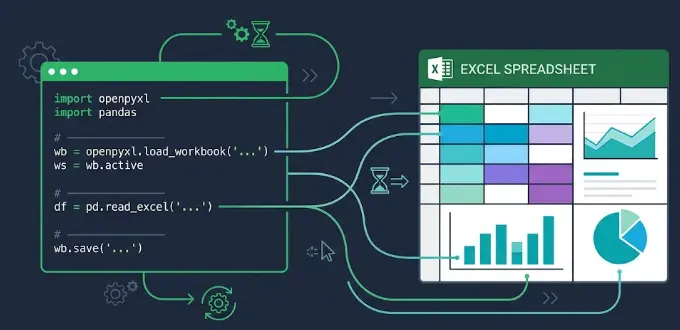
Why Automate Excel with Python?
manual Excel work
for large datasets
in automated
report generation
without Excel
crashing
for Python's
Excel libraries
1. Why Automate Excel with Python?
Excel is the most widely used data tool in the world. Millions of professionals in finance, marketing, HR, and operations rely on it every day. But there's a problem: most Excel work is done manually — copying data between sheets, applying formulas row by row, regenerating the same report every Monday morning.
Python excel automation solves this. Instead of spending 3 hours every week updating spreadsheets, you write a Python script once — and it does it in 30 seconds, every time, without errors.
💡 Real example: A financial analyst in Toronto spent 4 hours every Friday pulling data from 12 Excel files and creating a consolidated report. After learning Python Excel automation, the same task runs automatically every Friday at 8 AM and lands in her inbox. She gained back 200 hours per year.
What Can You Automate?
Auto-generate weekly/monthly reports from raw data, formatted exactly as required
Merge data from dozens of Excel files into one master spreadsheet
Remove duplicates, fix formatting, standardize columns across thousands of rows
Generate personalized Excel reports and email them to different recipients automatically
Flag errors, highlight outliers, and enforce data quality rules automatically
2. Python vs Excel Macros (VBA): Which Is Better?
Excel already has a built-in automation language: VBA (Visual Basic for Applications). So why learn Python? Here's an honest comparison:
| Feature | Python | VBA / Macros |
|---|---|---|
| Requires Excel installed | No ✓ | Yes ✗ |
| Handle 1M+ rows easily | Yes ✓ | Slow ✗ |
| Connect to APIs & databases | Yes ✓ | Limited △ |
| Run on servers / cloud | Yes ✓ | No ✗ |
| Version control (Git) | Yes ✓ | No ✗ |
| Transfer skills to other tools | Yes ✓ | Excel only ✗ |
| Learning resources & community | Huge ✓ | Limited △ |
| Automate Excel UI clicks | Via xlwings △ | Yes ✓ |
Verdict: Python wins for 90% of Excel automation scenarios. VBA is only preferable when you specifically need to click buttons or interact with the Excel UI in old legacy files. For everything else — data processing, report generation, bulk operations — Python is faster, more powerful, and far more maintainable.
3. Top Python Libraries for Excel Automation
There are several libraries for python excel automation, each suited to different tasks. Here are the three you need to know:
The go-to library for reading and writing .xlsx files. No Excel required. Supports formatting, styles, charts, formulas, multiple sheets, and merged cells.
The industry standard for data manipulation. Perfect for reading Excel into DataFrames, cleaning, filtering, aggregating, and writing results back. Handles millions of rows with ease.
Controls Excel directly on your screen. Reads live values, triggers Excel macros, and refreshes pivot tables. Requires Excel installed. Best when you need two-way live interaction with the Excel application.
Quick decision guide: Use openpyxl for creating and formatting .xlsx files. Use pandas for data analysis and bulk processing. Use xlwings when you need to control a live Excel session. For most automation tasks, you'll use openpyxl + pandas together.
4. Setup: Installing the Libraries
Open your terminal and install the libraries you need:
pip install openpyxl pandas xlwings

# Verify installation
python -c "import openpyxl, pandas, xlwings; print('All installed!')"
pandas also uses openpyxl under the hood for Excel files, so having both installed gives you full flexibility. If you're working with older .xls files (Excel 97-2003 format), also install xlrd:
# For .xls files (older format)
pip install xlrd
5. Reading Excel Files with Python
Let's start with the basics of how to python automate excel files — reading data from existing spreadsheets.
Reading with openpyxl
openpyxl gives you full access to every cell, sheet, and property of your Excel file:
import openpyxl

# Load an existing Excel file
wb = openpyxl.load_workbook('sales_report.xlsx')

# Access a specific sheet
ws = wb['Q1 Sales']

# Read a specific cell value
revenue = ws['B2'].value
print(f"Revenue: {revenue}")

# Loop through all rows
for row in ws.iter_rows(min_row=2, values_only=True):
    product, sales, region = row[0], row[1], row[2]
    print(f"{product}: ${sales:,} ({region})")

# Get sheet dimensions
print(f"Sheet has {ws.max_row} rows and {ws.max_column} columns")

# List all sheet names
print(wb.sheetnames)
Reading with pandas (faster for large files)
pandas reads Excel files directly into a DataFrame — the most efficient approach for large datasets:
import pandas as pd

# Read the first sheet
df = pd.read_excel('sales_report.xlsx')

# Read a specific sheet by name
df = pd.read_excel('sales_report.xlsx', sheet_name='Q1 Sales')

# Read multiple sheets at once
all_sheets = pd.read_excel('sales_report.xlsx', sheet_name=None)
for sheet_name, df in all_sheets.items():
    print(f"Sheet '{sheet_name}': {len(df)} rows")

# Basic data exploration
print(df.head())           # First 5 rows
print(df.describe())       # Statistics
print(df.dtypes)           # Column types

# Filter rows
high_sales = df[df['Sales'] > 10000]
toronto_data = df[df['Region'] == 'Toronto']

# Calculate totals
total_revenue = df['Sales'].sum()
print(f"Total Revenue: ${total_revenue:,.2f}")
6. Writing and Editing Excel Files
Creating new Excel files and editing existing ones is the core of python excel automation. Here's how to do both:
Creating a New Excel File with openpyxl
import openpyxl
from openpyxl.styles import Font, Alignment, PatternFill

# Create a new workbook
wb = openpyxl.Workbook()
ws = wb.active
ws.title = 'Sales Report'

# Write headers
headers = ['Product', 'Q1 Sales', 'Q2 Sales', 'Q3 Sales', 'Total']
for col, header in enumerate(headers, start=1):
    ws.cell(row=1, column=col, value=header)

# Write data rows
sales_data = [
    ['Widget A', 12500, 14200, 11800],
    ['Widget B', 8900, 9100, 10500],
    ['Widget C', 21000, 19800, 22400],
]

for row_num, row_data in enumerate(sales_data, start=2):
    for col, value in enumerate(row_data, start=1):
        ws.cell(row=row_num, column=col, value=value)
    # Add SUM formula in the Total column
    ws.cell(row=row_num, column=5, value=f"=SUM(B{row_num}:D{row_num})")

# Save the file
wb.save('sales_report_auto.xlsx')
print("Excel file created!")
Writing Excel with pandas (simplest approach)
import pandas as pd

# Write a DataFrame to Excel
df = pd.DataFrame({
    'Product': ['Widget A', 'Widget B', 'Widget C'],
    'Q1 Sales': [12500, 8900, 21000],
    'Q2 Sales': [14200, 9100, 19800],
})
df['Total'] = df[['Q1 Sales', 'Q2 Sales']].sum(axis=1)

# Write to Excel
df.to_excel('output.xlsx', index=False)

# Write multiple DataFrames to different sheets
with pd.ExcelWriter('multi_sheet_report.xlsx', engine='openpyxl') as writer:
    df.to_excel(writer, sheet_name='Sales', index=False)
    df_summary = df.groupby('Product')['Total'].sum().reset_index()
    df_summary.to_excel(writer, sheet_name='Summary', index=False)

print("Multi-sheet report created!")
7. Applying Formatting: Colors, Fonts, Borders
Professional Excel reports need more than raw data — they need formatting. openpyxl gives you full control over every visual aspect of your spreadsheet:
import openpyxl
from openpyxl.styles import Font, PatternFill, Alignment, Border, Side
from openpyxl.utils import get_column_letter

wb = openpyxl.Workbook()
ws = wb.active

# Style the header row
header_fill = PatternFill(start_color="1E40AF", end_color="1E40AF", fill_type="solid")
header_font = Font(name='Calibri', bold=True, color="FFFFFF", size=12)
center_align = Alignment(horizontal='center', vertical='center')

headers = ['Product', 'Revenue', 'Growth', 'Status']
for col, header in enumerate(headers, start=1):
    cell = ws.cell(row=1, column=col, value=header)
    cell.fill = header_fill
    cell.font = header_font
    cell.alignment = center_align

# Highlight rows based on values (conditional-style)
data = [
    ['Widget A', 125000, 0.15, 'On Track'],
    ['Widget B', 89000, -0.05, 'At Risk'],
    ['Widget C', 210000, 0.28, 'Exceeding'],
]

for row_idx, row_data in enumerate(data, start=2):
    for col_idx, value in enumerate(row_data, start=1):
        cell = ws.cell(row=row_idx, column=col_idx, value=value)

    # Color-code the Status column
    status_cell = ws.cell(row=row_idx, column=4)
    if row_data[3] == 'Exceeding':
        status_cell.fill = PatternFill(start_color="D1FAE5", fill_type="solid")
        status_cell.font = Font(color="065F46", bold=True)
    elif row_data[3] == 'At Risk':
        status_cell.fill = PatternFill(start_color="FEE2E2", fill_type="solid")
        status_cell.font = Font(color="991B1B", bold=True)

# Set column widths
ws.column_dimensions['A'].width = 20
ws.column_dimensions['B'].width = 15
ws.column_dimensions['C'].width = 12
ws.column_dimensions['D'].width = 15

# Freeze the header row
ws.freeze_panes = 'A2'

wb.save('formatted_report.xlsx')
print("Formatted report saved!")
💡 Pro tip: Excel colors use hex codes without the # sign. 1E40AF is the same as #1E40AF — just drop the hash. You can use any color picker to find the hex code you want.
8. Data Processing with Pandas + Excel
The most powerful pattern in python excel automation is using pandas for data manipulation and openpyxl for formatting. Here's a complete example: reading a raw data file, cleaning it, and producing a formatted executive report.
import pandas as pd
import openpyxl
from openpyxl.styles import Font, PatternFill, Alignment
from openpyxl.utils.dataframe import dataframe_to_rows

# Step 1: Load and clean raw data
df = pd.read_excel('raw_sales_data.xlsx')

# Remove duplicates and blank rows
df = df.drop_duplicates()
df = df.dropna(subset=['Product', 'Revenue'])

# Fix data types
df['Revenue'] = pd.to_numeric(df['Revenue'], errors='coerce')
df['Date'] = pd.to_datetime(df['Date'])

# Step 2: Aggregate data
monthly_summary = df.groupby(
    [df['Date'].dt.strftime('%Y-%m'), 'Region']
).agg(
    Total_Revenue=('Revenue', 'sum'),
    Transactions=('Revenue', 'count'),
    Avg_Revenue=('Revenue', 'mean')
).reset_index()

# Step 3: Write to Excel with formatting
wb = openpyxl.Workbook()
ws = wb.active
ws.title = 'Monthly Summary'

# Write DataFrame to sheet
for r_idx, row in enumerate(
    dataframe_to_rows(monthly_summary, index=False, header=True), start=1
):
    for c_idx, value in enumerate(row, start=1):
        ws.cell(row=r_idx, column=c_idx, value=value)

# Style the header row
for cell in ws[1]:
    cell.font = Font(bold=True, color="FFFFFF")
    cell.fill = PatternFill(start_color="1E40AF", fill_type="solid")
    cell.alignment = Alignment(horizontal='center')

wb.save('executive_report.xlsx')
print("Executive report generated!")
9. 5 Real Business Excel Automation Examples
Here are five practical scenarios where automate excel with python saves real time for real businesses:
Merge 50 Excel Files Into One
A retail chain receives daily sales files from 50 stores. Instead of manually copying data, Python merges them in seconds.
import pandas as pd
from pathlib import Path

all_data = []
for file in Path('store_reports/').glob('*.xlsx'):
    df = pd.read_excel(file)
    df['Store'] = file.stem   # Add filename as store name
    all_data.append(df)

combined = pd.concat(all_data, ignore_index=True)
combined.to_excel('master_report.xlsx', index=False)
print(f"Merged {len(all_data)} files, {len(combined)} rows total")
Auto-Generate Invoices from Data
Generate a separate formatted Excel invoice for each client from a master data file.
import pandas as pd
import openpyxl

df = pd.read_excel('billing_data.xlsx')

for client in df['Client'].unique():
    client_data = df[df['Client'] == client]
    wb = openpyxl.Workbook()
    ws = wb.active
    ws['A1'] = f"Invoice for {client}"
    for i, row in enumerate(client_data.itertuples(), start=3):
        ws.cell(row=i, column=1, value=row.Service)
        ws.cell(row=i, column=2, value=row.Amount)
    wb.save(f"invoices/{client}_invoice.xlsx")

print(f"Generated {df['Client'].nunique()} invoices")
Data Validation & Error Flagging
Automatically scan an Excel file for errors, missing values, and anomalies, then highlight them in red.
import openpyxl
from openpyxl.styles import PatternFill

wb = openpyxl.load_workbook('employee_data.xlsx')
ws = wb.active
red = PatternFill(start_color="FEE2E2", fill_type="solid")

for row in ws.iter_rows(min_row=2):
    salary = row[3].value
    if salary is None or salary <= 0 or salary > 500000:
        row[3].fill = red   # Flag suspicious salary

wb.save('employee_data_checked.xlsx')
print("Validation complete. Errors highlighted in red.")
Weekly KPI Dashboard
Pull fresh data from a database or CSV every Monday, calculate KPIs, and auto-format the dashboard — no manual effort required.
Email Reports to Stakeholders
Combine Python's Excel automation with smtplib or Outlook to auto-generate personalized reports and email them to different teams every Friday afternoon.
10. Scheduling Excel Reports Automatically
Writing the automation script is only half the job. To truly automate excel with python, you need to schedule it to run without you pressing a button.
On Windows: Task Scheduler
Use Windows Task Scheduler to run your Python script on a schedule. Create a basic task that runs:
C:\Python311\python.exe C:\scripts\generate_report.py
On Mac/Linux: cron
Add a cron job to run your script every Monday at 8:00 AM:
# Run: crontab -e  then add:
0 8 * * 1 /usr/bin/python3 /home/user/scripts/generate_report.py
Using Python's schedule library
import schedule
import time

def generate_weekly_report():
    # Your excel automation code here
    print("Generating weekly Excel report...")

# Run every Monday at 8:00 AM
schedule.every().monday.at("08:00").do(generate_weekly_report)

while True:
    schedule.run_pending()
    time.sleep(60)
Want to Learn Excel Automation with Hands-On Projects?
Our Python automation course covers Excel automation, web scraping, file management, and 15+ real projects you can add to your portfolio.
Try a Free Lesson NowFrequently Asked Questions
Can Python automate Excel files?
Yes. Using libraries like openpyxl, pandas, and xlwings, Python can read, write, format, and generate Excel files automatically — and even control live Excel sessions — all without you touching the spreadsheet manually.
Which Python library is best for Excel automation?
openpyxl for reading/writing formatted .xlsx files. pandas for data analysis and bulk processing. xlwings for live Excel control. Most tasks use openpyxl + pandas together — that combination covers 90% of real business scenarios.
Do I need Excel installed to run Python Excel automation?
No. openpyxl and pandas work without Excel installed — they read and write the .xlsx file format directly. This makes them perfect for server automation, cloud environments, and Linux systems. Only xlwings requires Excel to be installed.
Is Python better than VBA for Excel automation?
Python is better for 90% of scenarios: no Excel required, handles millions of rows, connects to APIs and databases, runs on servers, and the skills transfer to other tools. VBA is only preferable for automating Excel UI interactions in legacy files.
How long does it take to learn Python Excel automation?
With basic Python knowledge, you can automate simple tasks within a few hours using this tutorial. Building full automated reporting pipelines with formatting typically takes 1-2 weeks of practice. Our course guides you through it with hands-on projects.
Related Articles
How to Automate Reports with Python
Automate Excel, PDF, and HTML reports. Save 20+ hours per week.
Python for Data Automation Without Data Science
Practical guide for non-technical professionals: CSV, Excel, databases.
Python Automation Guide: Complete Tutorial for Beginners
Master Python automation from scratch with hands-on examples.
Ready to Master Python Automation?
Stop spending hours on manual Excel work. Learn Python automation with 15+ real projects — Excel reports, web scraping, email automation, and more. Start for $99 CAD.
LearnForge Team
Python automation instructors helping professionals across Canada save time and build practical automation skills since 2024.