How to Automate Website Tasks with Python: Complete Guide 2026
Stop doing repetitive web tasks by hand. Learn how to use Python to fill forms, click buttons, log into sites, scrape data, and schedule browser tasks — fully automatically.
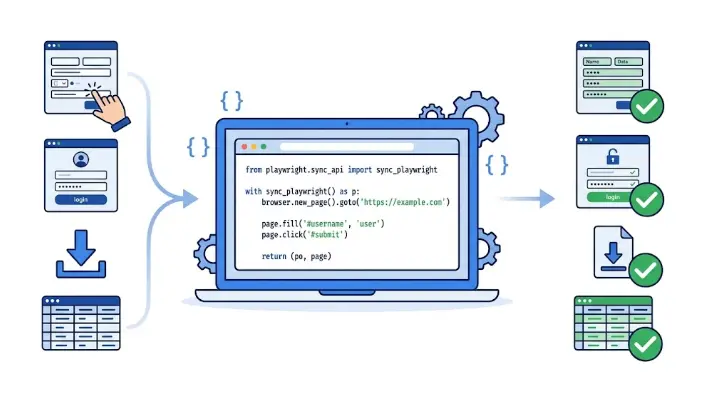
Why Automate Website Tasks with Python?
the clock with
no human needed
manual clicking
through web pages
in automated
data collection
process in a
single script run
1. What Is Python Web Automation?
Every day, millions of people perform the same repetitive tasks on websites: logging into dashboards, downloading reports, filling out the same form with different data, checking prices, copying data from one platform to another. This is exactly the kind of work computers should be doing for us.
Python web automation (also called browser automation) means writing Python scripts that control a browser or send web requests to perform these tasks automatically — with zero manual clicking.
💡 Real example: A recruitment manager in Toronto spent 90 minutes every Monday copying candidate data from a job portal into their internal tracking sheet. A 40-line Python script now logs into the portal, pulls the new applicant data, and updates the sheet automatically every Monday at 7 AM — before she even gets to her desk.
What Can You Automate on Websites?
Fill out registration forms, submit contact forms, upload files — automatically and at scale
Extract prices, listings, contacts, articles, and any other data from web pages into structured files
Log into password-protected sites, navigate member areas, and export your own data
Download reports, invoices, PDFs, and data exports from web portals on a schedule
Check prices, stock levels, or job postings and get notified when something changes
Automatically test your own web applications — click every button, fill every form, verify the output
2. Selenium vs Playwright vs Requests — Which to Use?
The right tool depends on what you need to automate. Here is an honest breakdown:
| Feature | Requests + BS4 | Selenium | Playwright |
|---|---|---|---|
| Controls real browser | No | Yes ✓ | Yes ✓ |
| Handles JavaScript | No ✗ | Yes ✓ | Yes ✓ |
| Speed | ⚡ Very fast | Moderate | Fast ✓ |
| Auto-wait for elements | — | Manual ✗ | Built-in ✓ |
| Community & tutorials | Large ✓ | Very large ✓ | Growing |
| Best for | Static HTML scraping | Complex browser tasks | Modern JS-heavy sites |
✅ Quick decision guide:
— Site is mostly static HTML? → Requests + BeautifulSoup
— Site uses JavaScript and you need a real browser? → Playwright (new projects) or Selenium (existing projects)
— You need to log in and navigate a member area? → Playwright or Selenium
3. Setup: Install the Tools
Install only what you need for your use case:
# For static page scraping
pip install requests beautifulsoup4

# For browser automation with Playwright (recommended for new projects)
pip install playwright
playwright install chromium   # downloads the browser — run once

# For browser automation with Selenium
pip install selenium webdriver-manager

# Useful extras
pip install lxml               # faster HTML parser for BeautifulSoup
pip install python-dotenv      # store credentials in .env files
4. Selenium Basics: Navigate, Click, Fill Forms
Selenium opens a real Chrome or Firefox window and controls it just like a human would. Here is the core pattern:
"""
Selenium basics: navigate, find elements, click, fill forms.
pip install selenium webdriver-manager
"""
from selenium import webdriver
from selenium.webdriver.common.by import By
from selenium.webdriver.support.ui import WebDriverWait
from selenium.webdriver.support import expected_conditions as EC
from selenium.webdriver.chrome.service import Service
from webdriver_manager.chrome import ChromeDriverManager

# --- Launch Chrome automatically (no manual driver download needed) ---
options = webdriver.ChromeOptions()
# options.add_argument("--headless")  # uncomment to run without visible window
driver = webdriver.Chrome(
    service=Service(ChromeDriverManager().install()),
    options=options
)
wait = WebDriverWait(driver, timeout=10)

# --- Navigate to a page ---
driver.get("https://example.com/search")

# --- Find elements ---
# By CSS selector (most reliable)
search_box = driver.find_element(By.CSS_SELECTOR, "input[name='q']")

# By ID
submit_btn = driver.find_element(By.ID, "submit-button")

# By text content
link = driver.find_element(By.LINK_TEXT, "Download Report")

# --- Interact ---
search_box.clear()
search_box.send_keys("python automation")
submit_btn.click()

# --- Wait for a result to appear ---
results = wait.until(
    EC.presence_of_all_elements_located((By.CSS_SELECTOR, ".result-item"))
)
for item in results[:5]:
    print(item.text)

# --- Take a screenshot ---
driver.save_screenshot("result.png")

driver.quit()
Pro tip: Always use WebDriverWait instead of time.sleep(). It waits only as long as needed and moves on the moment the element is found — making your scripts faster and more reliable.
5. Playwright Basics: Faster, Cleaner, More Reliable
Playwright is the modern alternative to Selenium. It auto-waits for elements, runs faster, and has a cleaner API. For any new project in 2026, it is the recommended choice:
"""
Playwright basics: navigate, fill forms, click, scrape.
pip install playwright && playwright install chromium
"""
from playwright.sync_api import sync_playwright

with sync_playwright() as p:
    # Launch Chromium (also supports Firefox, WebKit)
    browser = p.chromium.launch(headless=False)  # headless=True = no window
    page    = browser.new_page()

    # Navigate
    page.goto("https://example.com/search")

    # Fill input field (auto-waits until the element is ready)
    page.fill("input[name='q']", "python automation")

    # Click a button
    page.click("button[type='submit']")

    # Wait for navigation to complete
    page.wait_for_load_state("networkidle")

    # Get text from all matching elements
    results = page.locator(".result-title").all_text_contents()
    for title in results[:5]:
        print(title)

    # Select from a dropdown
    page.select_option("select#category", label="Technology")

    # Check a checkbox
    page.check("input#agree-terms")

    # Screenshot
    page.screenshot(path="screenshot.png", full_page=True)

    browser.close()
Why Playwright Is Better for Most New Projects
No manual sleep or wait calls needed
Chrome, Firefox, Safari in one library
Record your clicks → get Python code
Save login state and reuse it
Playwright Codegen: Run playwright codegen https://example.com in your terminal. A browser opens — you click around manually, and Playwright automatically generates the Python code for every action. Perfect for getting started quickly.
6. Web Scraping with Requests + BeautifulSoup
For static HTML pages (no JavaScript required), requests + BeautifulSoup is the fastest and simplest approach — no browser needed at all:
"""
Scrape a table of job listings from a static HTML page.
pip install requests beautifulsoup4 lxml
"""
import csv
import requests
from bs4 import BeautifulSoup

URL     = "https://example-jobs.com/listings"
HEADERS = {"User-Agent": "Mozilla/5.0 (compatible; research-bot/1.0)"}

response = requests.get(URL, headers=HEADERS, timeout=10)
response.raise_for_status()  # raise error if request failed

soup = BeautifulSoup(response.text, "lxml")
jobs = []

for card in soup.select(".job-card"):
    title    = card.select_one(".job-title")
    company  = card.select_one(".company-name")
    location = card.select_one(".location")
    link     = card.select_one("a[href]")

    jobs.append({
        "title":    title.get_text(strip=True)    if title    else "",
        "company":  company.get_text(strip=True)  if company  else "",
        "location": location.get_text(strip=True) if location else "",
        "url":      link["href"]                   if link     else "",
    })

# Save to CSV
with open("jobs.csv", "w", newline="", encoding="utf-8") as f:
    writer = csv.DictWriter(f, fieldnames=["title", "company", "location", "url"])
    writer.writeheader()
    writer.writerows(jobs)

print(f"✅ Scraped {len(jobs)} jobs → saved to jobs.csv")
Most Useful BeautifulSoup Selectors
# Find first matching element
soup.find("h1")
soup.find("div", class_="price")
soup.find(id="main-content")

# Find all matching elements
soup.find_all("a")                      # all links
soup.select(".product-card")           # CSS class selector
soup.select("table tbody tr")          # nested selector
soup.select("a[href^='https']")        # links starting with https

# Extract data
element.get_text(strip=True)            # clean text content
element["href"]                        # attribute value
element.get("src", "")                 # safe attribute get
7. Automate Login to Password-Protected Pages
Many useful automations require logging into a site first. Here is how to do it with Playwright — and how to save the login state so you only authenticate once:
"""
Step 1: Log in once and save the session to a file.
Next time, load the session instead of logging in again.
"""
import os
from playwright.sync_api import sync_playwright
from dotenv import load_dotenv

load_dotenv()  # reads USERNAME and PASSWORD from .env file

SESSION_FILE = "session.json"

def login_and_save_session():
    with sync_playwright() as p:
        browser = p.chromium.launch(headless=False)
        context = browser.new_context()
        page    = context.new_page()

        page.goto("https://example.com/login")

        # Fill login form
        page.fill("input[name='email']",    os.getenv("USERNAME"))
        page.fill("input[name='password']", os.getenv("PASSWORD"))
        page.click("button[type='submit']")

        # Wait until redirected to the dashboard
        page.wait_for_url("**/dashboard**")
        print("✅ Logged in successfully.")

        # Save cookies & storage state
        context.storage_state(path=SESSION_FILE)
        print(f"💾 Session saved to {SESSION_FILE}")
        browser.close()

def run_with_saved_session():
    with sync_playwright() as p:
        browser = p.chromium.launch(headless=True)
        # Load the saved session — already logged in!
        context = browser.new_context(storage_state=SESSION_FILE)
        page    = context.new_page()

        page.goto("https://example.com/dashboard/reports")
        print(page.title())   # → "Reports | Dashboard"

        # Do your work here...
        browser.close()

# First run: login and save
if not os.path.exists(SESSION_FILE):
    login_and_save_session()
else:
    run_with_saved_session()
⚠️ Never hardcode credentials. Create a .env file with USERNAME=you@email.com and PASSWORD=yourpassword, add .env to your .gitignore, and load it with python-dotenv. Never commit credentials to Git.
8. Download Files from Websites Automatically
Two patterns cover most download scenarios:
Direct URL download (with Requests)
import requests
from pathlib import Path

def download_file(url: str, save_path: str) -> None:
    # stream=True handles large files without loading all into memory
    response = requests.get(url, stream=True, timeout=30)
    response.raise_for_status()

    path = Path(save_path)
    path.parent.mkdir(parents=True, exist_ok=True)

    with open(path, "wb") as f:
        for chunk in response.iter_content(chunk_size=8192):
            f.write(chunk)

    print(f"✅ Downloaded: {path.name} ({path.stat().st_size / 1024:.1f} KB)")

download_file(
    url="https://example.com/reports/monthly_report.pdf",
    save_path="downloads/monthly_report.pdf"
)
Click-triggered download (with Playwright)
from playwright.sync_api import sync_playwright

with sync_playwright() as p:
    browser = p.chromium.launch()
    context = browser.new_context(accept_downloads=True)
    page    = context.new_page()

    page.goto("https://example.com/dashboard")

    # Click the download button and capture the file
    with page.expect_download() as download_info:
        page.click("button#export-csv")

    download = download_info.value
    download.save_as(f"downloads/{download.suggested_filename}")
    print(f"✅ Saved: {download.suggested_filename}")

    browser.close()
9. Handle Dynamic Pages and Wait for Elements
Modern websites load content dynamically with JavaScript. Your script must wait for elements to appear before interacting with them. Here are the patterns for both tools:
# ── Playwright: waits are built in ──────────────────────────────
# page.fill() / page.click() automatically wait for the element
# You can also wait explicitly:

page.wait_for_selector(".results-list")          # wait until visible
page.wait_for_selector(".spinner", state="hidden")  # wait until loading spinner disappears
page.wait_for_load_state("networkidle")           # wait until no network requests
page.wait_for_url("**/success**")               # wait until URL matches pattern

# ── Selenium: use WebDriverWait ──────────────────────────────────
from selenium.webdriver.support.ui import WebDriverWait
from selenium.webdriver.support import expected_conditions as EC
from selenium.webdriver.common.by import By

wait = WebDriverWait(driver, timeout=15)

# Wait until element appears in DOM
element = wait.until(EC.presence_of_element_located((By.ID, "result-table")))

# Wait until element is visible and clickable
btn = wait.until(EC.element_to_be_clickable((By.CSS_SELECTOR, ".submit-btn")))
btn.click()

# Wait until text appears on page
wait.until(EC.text_to_be_present_in_element((By.TAG_NAME, "body"), "Upload complete"))

# Scroll to bottom to trigger lazy-loaded content
driver.execute_script("window.scrollTo(0, document.body.scrollHeight);")
10. 6 Real Business Automation Examples
1. Auto-Download Monthly Reports from a Portal
Log into your accounting or CRM portal, navigate to the reports section, click the "Export CSV" button for each month, and save all files to a dated folder. Runs every 1st of the month at 8 AM. Zero manual effort.
2. Price Monitoring & Alerts
Check competitor prices on e-commerce sites every morning. Compare to your own prices in a CSV. If any competitor drops below your threshold, send an automated email alert. No manual checking needed.
3. Automated Form Submission at Scale
Read a list of 200 entries from a spreadsheet and submit each one to a web form — automatically filling fields, clicking submit, and waiting for confirmation. What takes a human 4 hours takes Python 8 minutes.
4. LinkedIn Job Scraper
Search for "Python developer Toronto" on job boards, scrape all listings including title, company, location, salary, and link — and export them to a clean spreadsheet. Run daily to track new postings.
5. Automated Website Screenshots
Visit 50 client websites every week, take a full-page screenshot of each, and save them to dated folders. Instantly detect visual changes or downtime. Takes 3 minutes to set up, saves 2 hours per week.
6. Inventory & Stock Availability Monitor
Check a product page every 15 minutes. When the "Out of Stock" label disappears and the "Add to Cart" button becomes active, send yourself an instant email or Slack notification.
11. Best Practices and Common Mistakes
✅ Always add rate limiting
Add a small delay between requests (time.sleep(1) or page.wait_for_timeout(1000)). Sending hundreds of requests per second looks like an attack and will get your IP blocked.
✅ Set a realistic User-Agent header
When using Requests, set headers = {"User-Agent": "Mozilla/5.0 ..."}. Default Python headers are often blocked because they look like bots.
✅ Store credentials in .env files
Never hardcode passwords or API keys in your script. Use python-dotenv to load them from a .env file, and add .env to .gitignore immediately.
❌ Don't use time.sleep() for waiting on elements
time.sleep(3) is fragile — sometimes the page loads in 1 second, sometimes in 6. Use WebDriverWait (Selenium) or Playwright's auto-wait instead.
❌ Don't ignore the robots.txt
Check https://example.com/robots.txt before scraping. Respecting disallow rules keeps you on the right side of a site's terms of service. Always prefer official APIs when available.
❌ Don't hardcode CSS selectors without fallbacks
Websites change their HTML. Wrap your scraping logic in try/except blocks and log errors clearly, so you know when a site has updated its structure and your selectors need updating.
Ready to Automate the Web?
Our Python automation course covers browser automation, web scraping, file management, Excel, email sending, and scheduling — with real projects from day one.
Try a Free Lesson →12. Frequently Asked Questions
What is Python web automation?
Writing Python scripts that control a browser or send HTTP requests to perform tasks on websites automatically — filling forms, logging in, clicking buttons, downloading files, and scraping data. Main tools: Selenium, Playwright, Requests + BeautifulSoup.
What is the difference between Selenium and Playwright?
Both control real browsers. Playwright is newer, faster, with built-in auto-waiting and a cleaner API. Selenium is older with a larger community. For new projects in 2026, Playwright is the recommended choice. For static pages without JavaScript, Requests + BeautifulSoup is faster than both.
Is Python web automation legal?
Automating your own accounts and scraping publicly available data for personal research is generally acceptable. Always check the site's robots.txt and Terms of Service. Avoid bypassing paywalls or scraping at high speeds. When available, use the official API instead of scraping.
How do I automate a form submission with Python?
With Playwright: page.fill("input[name='email']", "you@email.com") then page.click("button[type='submit']"). With Selenium: driver.find_element(By.NAME, "email").send_keys("you@email.com"). For pure HTML forms, you can also POST directly with Requests — no browser needed.
How do I handle login-protected pages with Python?
Log in once with Playwright or Selenium, then save the session with context.storage_state(path="session.json"). On subsequent runs, load it with browser.new_context(storage_state="session.json") — you are already logged in without going through the login page again.
Related Articles
Selenium Python Tutorial 2026
Deep dive into Selenium: browser testing, web scraping, and automated interactions.
How to Automate File Management with Python
Organize files automatically by type or date, bulk rename, find duplicates.
How to Automate Excel Tasks with Python
Read, write, format, and auto-generate Excel reports using openpyxl and pandas.