15 Python Automation Projects for Beginners: Step-by-Step Guide 2026
The fastest way to learn Python automation is to build real projects. This guide gives you 15 practical projects — from a 30-minute file organizer to a full price tracking bot — each with complete, working code you can run today.
Why Build Projects (Not Just Follow Tutorials)?
Most beginners get stuck in tutorial hell — watching videos, understanding everything, but never actually writing their own code. The fix is simple: build something real.
Every project in this guide is designed to be finished, not just started. Each one produces a working script you can use right away — and show to employers as proof of your skills.
complete code
from 30 min to 8 hrs
knowledge required
after completion
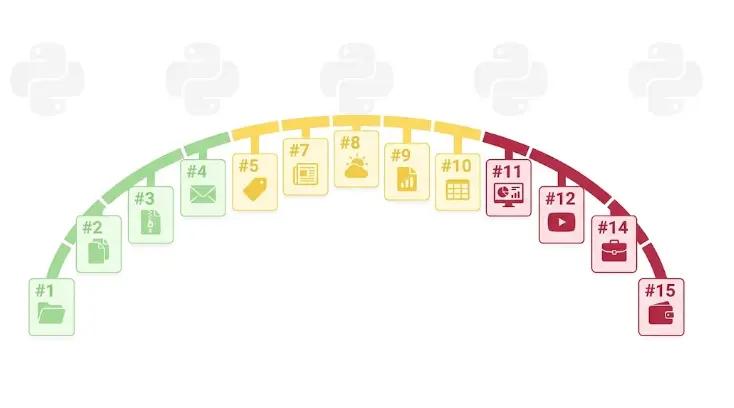
💡 Recommended path: Start with Projects 1–3 (Easy), then tackle 4–8 (Medium). By Project 10, you will have a portfolio that demonstrates real Python automation skills — and enough confidence to take on any project idea of your own.
Smart File Organizer
What it does: Scans any folder and automatically moves files into subfolders based on their type — Images, Documents, Videos, Archives, and more. You define the rules.
What you learn: pathlib, shutil.move(), dictionaries, loops, mkdir().
Real use case: Clean up your Downloads folder in 3 seconds instead of 30 minutes. Schedule it to run daily so you never see a messy folder again.
import shutil
from pathlib import Path

RULES = {
    "Images":    [".jpg",".jpeg",".png",".gif",".webp",".heic"],
    "Documents": [".pdf",".doc",".docx",".txt",".pages"],
    "Sheets":    [".xls",".xlsx",".csv",".numbers"],
    "Videos":    [".mp4",".mov",".avi",".mkv"],
    "Audio":     [".mp3",".wav",".flac",".aac"],
    "Archives":  [".zip",".rar",".tar",".gz"],
    "Code":      [".py",".js",".html",".css",".json"],
}

def organize(folder_path):
    folder = Path(folder_path)
    moved  = 0
    for file in folder.iterdir():
        if file.is_dir(): continue
        category = next(
            (k for k, exts in RULES.items() if file.suffix.lower() in exts),
            "Other"
        )
        dest = folder / category
        dest.mkdir(exist_ok=True)
        shutil.move(str(file), str(dest / file.name))
        print(f"  ✅ {file.name:<35} → {category}/")
        moved += 1
    print(f"\nDone. Moved {moved} files.")

# ▶ Change to your folder path and run
organize("/Users/yourname/Downloads")
🚀 How to extend it: Add scheduling with cron (Mac) or Task Scheduler (Windows) to run every morning automatically. Add a log file to record what was moved and when.
Bulk File Renamer
What it does: Renames every file in a folder using a consistent pattern — sequential numbering, date prefix, text replacement, or any custom format.
What you learn: Path.rename(), string formatting with f-strings, enumerate(), glob() patterns.
from pathlib import Path
import datetime

class BulkRenamer:
    def __init__(self, folder):
        self.folder = Path(folder)

    def add_number(self, pattern="*.jpg", prefix="photo"):
        """photo_0001.jpg, photo_0002.jpg ..."""
        for i, f in enumerate(sorted(self.folder.glob(pattern)), 1):
            f.rename(self.folder / f"{prefix}_{i:04d}{f.suffix}")
            print(f"  {f.name} → {prefix}_{i:04d}{f.suffix}")

    def add_date_prefix(self, pattern="*.pdf"):
        """2026-03-26_filename.pdf"""
        today = datetime.date.today().strftime("%Y-%m-%d")
        for f in self.folder.glob(pattern):
            if not f.name.startswith(today):
                new = self.folder / f"{today}_{f.name}"
                f.rename(new)
                print(f"  {f.name} → {new.name}")

    def replace_text(self, old, new, pattern="*"):
        """Replace text in all filenames matching pattern"""
        for f in self.folder.glob(pattern):
            if old in f.name:
                renamed = self.folder / f.name.replace(old, new)
                f.rename(renamed)
                print(f"  {f.name} → {renamed.name}")

# ▶ Usage examples
r = BulkRenamer("/Users/yourname/Photos")
r.add_number(pattern="*.jpg", prefix="vacation")
# r.add_date_prefix(pattern="*.pdf")
# r.replace_text("draft", "final")Automated Daily Backup
What it does: Creates a timestamped ZIP archive of any folder daily. Keeps only the last N backups and deletes older ones automatically.
What you learn: shutil.make_archive(), sorted() with file metadata, automatic cleanup logic.
import shutil, datetime
from pathlib import Path

SOURCE     = Path("/Users/yourname/Projects/my_project")
BACKUP_DIR = Path("/Users/yourname/Backups")
KEEP_LAST  = 7   # how many backups to keep

def backup():
    BACKUP_DIR.mkdir(exist_ok=True)
    stamp   = datetime.datetime.now().strftime("%Y-%m-%d_%H-%M")
    archive = BACKUP_DIR / f"backup_{SOURCE.name}_{stamp}"
    shutil.make_archive(str(archive), "zip", str(SOURCE))
    print(f"✅ Backup created: {archive.name}.zip")
    cleanup()

def cleanup():
    backups = sorted(BACKUP_DIR.glob("backup_*.zip"), key=lambda f: f.stat().st_mtime)
    while len(backups) > KEEP_LAST:
        old = backups.pop(0)
        old.unlink()
        print(f"🗑️  Deleted old backup: {old.name}")

backup()
🚀 How to extend it: Schedule with cron: 0 22 * * * python3 backup.py — runs every night at 10 PM. Add email notification when backup completes.
Email Newsletter Bot
What it does: Reads a list of subscribers from a CSV file and sends each person a personalized email with their name, using a text template. Handles errors gracefully and logs every send.
What you learn: smtplib, MIMEMultipart, CSV reading, string templates, error handling with try/except, logging.
import csv, smtplib, os, logging
from email.mime.text import MIMEText
from email.mime.multipart import MIMEMultipart
from dotenv import load_dotenv

load_dotenv()
logging.basicConfig(filename="newsletter.log", level=logging.INFO,
                    format="%(asctime)s %(message)s")

TEMPLATE = """Hi {name},

Welcome to this week's Python automation digest!

This week's tip: {tip}

Happy automating,
LearnForge Team"""

THIS_WEEK_TIP = "Use pathlib.Path instead of os.path — cleaner and cross-platform."

def send_newsletter(csv_file: str) -> None:
    sent = failed = 0
    with smtplib.SMTP("smtp.gmail.com", 587) as server:
        server.starttls()
        server.login(os.getenv("EMAIL_USER"), os.getenv("EMAIL_PASS"))

        with open(csv_file, encoding="utf-8") as f:
            for row in csv.DictReader(f):
                try:
                    msg = MIMEMultipart()
                    msg["From"]    = os.getenv("EMAIL_USER")
                    msg["To"]      = row["email"]
                    msg["Subject"] = "🐍 Python Tip of the Week"
                    body = TEMPLATE.format(name=row["name"], tip=THIS_WEEK_TIP)
                    msg.attach(MIMEText(body, "plain"))
                    server.send_message(msg)
                    logging.info(f"SENT: {row['email']}")
                    sent += 1
                except Exception as e:
                    logging.error(f"FAILED: {row['email']} — {e}")
                    failed += 1

    print(f"✅ Sent: {sent}  |  ❌ Failed: {failed}")

send_newsletter("subscribers.csv")
# subscribers.csv columns: name, emailPrice Tracker & Email Alert
What it does: Monitors the price of a product on an e-commerce site every hour. When the price drops below your target, sends an email alert with the current price and a direct link.
What you learn: requests, BeautifulSoup, CSS selectors, re module for parsing prices, time.sleep(), combining scraping with email.
# pip install requests beautifulsoup4 python-dotenv
import requests, re, time, smtplib, os
from bs4 import BeautifulSoup
from email.mime.text import MIMEText
from dotenv import load_dotenv

load_dotenv()

PRODUCT_URL  = "https://example-shop.com/laptop-stand"
TARGET_PRICE = 35.00
CHECK_EVERY  = 3600  # seconds
HEADERS      = {"User-Agent": "Mozilla/5.0"}

def scrape_price() -> float | None:
    try:
        soup = BeautifulSoup(requests.get(PRODUCT_URL, headers=HEADERS, timeout=10).text, "lxml")
        raw  = soup.select_one(".price, [data-price], .product-price")
        return float(re.sub(r"[^\d.]", "", raw.text)) if raw else None
    except Exception as e:
        print(f"Scrape error: {e}"); return None

def send_alert(current_price: float) -> None:
    msg = MIMEText(
        f"🎉 Price dropped!\n\nCurrent price: ${current_price:.2f}\nTarget: ${TARGET_PRICE:.2f}\n\n{PRODUCT_URL}"
    )
    msg["Subject"] = f"🔔 Price Alert: ${current_price:.2f}"
    msg["From"] = msg["To"] = os.getenv("EMAIL_USER")
    with smtplib.SMTP("smtp.gmail.com", 587) as s:
        s.starttls(); s.login(os.getenv("EMAIL_USER"), os.getenv("EMAIL_PASS"))
        s.send_message(msg)
    print("📧 Alert sent!")

print(f"👁️ Watching price for: {PRODUCT_URL}")
while True:
    price = scrape_price()
    if price:
        print(f"Current: ${price:.2f}  |  Target: ${TARGET_PRICE:.2f}")
        if price <= TARGET_PRICE:
            send_alert(price); break
time.sleep(CHECK_EVERY)News Headline Scraper & Daily Digest
What it does: Scrapes the top headlines from a news RSS feed, formats them into a clean digest, saves to a text file, and optionally emails the summary to you every morning.
What you learn: RSS/XML parsing with BeautifulSoup, writing structured text files, combining multiple automation tasks into one pipeline.
# pip install requests beautifulsoup4 lxml
import requests, datetime
from bs4 import BeautifulSoup
from pathlib import Path

RSS_FEEDS = {
    "BBC World":  "http://feeds.bbci.co.uk/news/world/rss.xml",
    "CBC Canada": "https://www.cbc.ca/cmlink/rss-topstories",
}
MAX_ITEMS = 5   # headlines per feed

def fetch_feed(name: str, url: str) -> list[str]:
    soup  = BeautifulSoup(requests.get(url, timeout=10).text, "xml")
    items = soup.find_all("item")[:MAX_ITEMS]
    return [f"  • {i.title.text.strip()}" for i in items if i.title]

def build_digest() -> str:
    today  = datetime.date.today().strftime("%A, %B %d %Y")
    lines  = [f"📰 News Digest — {today}\n{'='*40}\n"]
    for name, url in RSS_FEEDS.items():
        lines.append(f"\n{name}:")
        lines.extend(fetch_feed(name, url))
    return "\n".join(lines)

digest = build_digest()
print(digest)

# Save to file
out = Path(f"digest_{datetime.date.today()}.txt")
out.write_text(digest, encoding="utf-8")
print(f"\n✅ Saved to {out.name}")Weather Notifier
What it does: Fetches today's weather for your city from a free API and sends you a morning email summary: temperature, conditions, and whether to bring an umbrella.
What you learn: Working with REST APIs, parsing JSON responses, conditional logic in notifications.
# pip install requests python-dotenv
# Free API: wttr.in (no key needed)
import requests, smtplib, os
from email.mime.text import MIMEText
from dotenv import load_dotenv

load_dotenv()
CITY = "Toronto"

def get_weather(city: str) -> dict:
    url  = f"https://wttr.in/{city}?format=j1"
    data = requests.get(url, timeout=10).json()
    curr = data["current_condition"][0]
    return {
        "temp_c":   curr["temp_C"],
        "feels":    curr["FeelsLikeC"],
        "desc":     curr["weatherDesc"][0]["value"],
        "humidity": curr["humidity"],
        "rain":     int(curr["precipMM"]) > 0,
    }

w    = get_weather(CITY)
tip  = "☂️ Take an umbrella!" if w["rain"] else "☀️ No rain expected."
body = f"""Good morning! Weather in {CITY}:

🌡️  Temperature: {w['temp_c']}°C (feels like {w['feels']}°C)
🌥️  Conditions:  {w['desc']}
💧  Humidity:   {w['humidity']}%

{tip}
"""
msg = MIMEText(body)
msg["Subject"] = f"☀️ Weather: {w['temp_c']}°C in {CITY}"
msg["From"] = msg["To"] = os.getenv("EMAIL_USER")

with smtplib.SMTP("smtp.gmail.com", 587) as s:
    s.starttls(); s.login(os.getenv("EMAIL_USER"), os.getenv("EMAIL_PASS"))
    s.send_message(msg)
print("✅ Weather email sent.")Automated Excel Report Generator
What it does: Reads raw data from a CSV, calculates a summary (totals, averages, top performers), and generates a beautifully formatted Excel report with colour-coded headers and auto-fitted columns — ready to send.
What you learn: pandas aggregations, openpyxl styling, combining data analysis with Excel output.
# pip install pandas openpyxl
import pandas as pd
from openpyxl import load_workbook
from openpyxl.styles import Font, PatternFill, Alignment, Border, Side
import datetime

# 1. Load and process data
df = pd.read_csv("sales.csv")   # columns: rep, region, product, revenue, units

summary = df.groupby("region").agg(
    total_revenue=("revenue", "sum"),
    total_units  =("units",   "sum"),
    avg_deal     =("revenue", "mean"),
    deals        =("revenue", "count"),
).reset_index().sort_values("total_revenue", ascending=False)

# 2. Write to Excel
today    = datetime.date.today().strftime("%Y-%m-%d")
filename = f"sales_report_{today}.xlsx"
summary.to_excel(filename, index=False, sheet_name="Sales Summary")

# 3. Style the report
wb = load_workbook(filename)
ws = wb.active
blue_fill = PatternFill("solid", fgColor="1E40AF")
thin      = Border(bottom=Side(style="thin", color="E5E7EB"))

for cell in ws[1]:
    cell.font      = Font(bold=True, color="FFFFFF", size=11)
    cell.fill      = blue_fill
    cell.alignment = Alignment(horizontal="center", vertical="center")
ws.row_dimensions[1].height = 24

for col in ws.columns:
    ws.column_dimensions[col[0].column_letter].width = (
        max(len(str(c.value or "")) for c in col) + 4
    )

wb.save(filename)
print(f"✅ Report saved: {filename}")PDF Merger & Splitter
What it does: Merges all PDFs in a folder into one document, or splits a multi-page PDF into individual pages. Includes a simple command-line interface.
What you learn: PyPDF2 library, sys.argv for CLI arguments, processing multiple files in order.
# pip install pypdf2
from PyPDF2 import PdfMerger, PdfReader, PdfWriter
from pathlib import Path
import sys

def merge_pdfs(folder: str, output: str = "merged.pdf") -> None:
    merger = PdfMerger()
    pdfs   = sorted(Path(folder).glob("*.pdf"))
    for pdf in pdfs:
        merger.append(str(pdf))
        print(f"  Added: {pdf.name}")
    merger.write(output)
    merger.close()
    print(f"✅ Merged {len(pdfs)} files → {output}")

def split_pdf(input_pdf: str, output_dir: str = "pages") -> None:
    reader   = PdfReader(input_pdf)
    out_dir  = Path(output_dir)
    out_dir.mkdir(exist_ok=True)
    stem     = Path(input_pdf).stem
    for i, page in enumerate(reader.pages):
        writer = PdfWriter()
        writer.add_page(page)
        out_file = out_dir / f"{stem}_page_{i+1:03d}.pdf"
        with open(out_file, "wb") as f:
            writer.write(f)
        print(f"  Page {i+1} → {out_file.name}")
    print(f"✅ Split into {len(reader.pages)} pages.")

# Usage:
merge_pdfs("/Users/yourname/Invoices")
# split_pdf("big_document.pdf")CSV Data Cleaner
What it does: Takes a messy CSV (inconsistent casing, whitespace, duplicates, missing values) and outputs a clean, standardized version. Prints a full report of what was fixed.
What you learn: pandas data cleaning methods, generating summary reports, before/after comparison.
import pandas as pd

def clean_csv(input_file: str, output_file: str) -> None:
    df = pd.read_csv(input_file)
    original_rows = len(df)
    report = []

    # Standardize column names
    df.columns = df.columns.str.strip().str.lower().str.replace(r"\s+", "_", regex=True)
    report.append(f"✅ Columns normalized: {list(df.columns)}")

    # Strip whitespace from strings
    str_cols = df.select_dtypes("object").columns
    df[str_cols] = df[str_cols].apply(lambda c: c.str.strip())

    # Standardize email to lowercase
    if "email" in df.columns:
        df["email"] = df["email"].str.lower()
        report.append("✅ Emails lowercased")

    # Remove duplicates
    before = len(df)
    df = df.drop_duplicates()
    removed = before - len(df)
    report.append(f"✅ Removed {removed} duplicate rows")

    # Drop rows where all values are null
    df = df.dropna(how="all")

    # Fill missing numeric values with 0
    num_cols = df.select_dtypes("number").columns
    df[num_cols] = df[num_cols].fillna(0)

    df.to_csv(output_file, index=False)
    print(f"\n📊 Clean Report — {input_file}")
    print(f"   Before: {original_rows} rows  |  After: {len(df)} rows")
    for r in report: print(f"   {r}")
    print(f"   ✅ Saved to: {output_file}")

clean_csv("raw_contacts.csv", "clean_contacts.csv")Website Uptime Monitor
What it does: Pings a list of websites every 5 minutes. Logs every check result with a timestamp. Sends an email alert immediately when a site goes down.
What you learn: HTTP status codes, exception handling, continuous monitoring loops, logging to a file.
import requests, smtplib, os, time, datetime
from email.mime.text import MIMEText
from dotenv import load_dotenv

load_dotenv()
SITES    = ["https://learnforge.dev", "https://yoursite.com"]
INTERVAL = 300   # 5 minutes
LOG_FILE = "uptime.log"
alerted  = set()  # avoid repeat alerts for same site

def log(msg):
    ts   = datetime.datetime.now().strftime("%Y-%m-%d %H:%M:%S")
    line = f"[{ts}] {msg}"
    print(line)
    with open(LOG_FILE, "a") as f: f.write(line + "\n")

def alert(url, error):
    if url in alerted: return
    alerted.add(url)
    msg = MIMEText(f"🚨 SITE DOWN\n\n{url}\nError: {error}")
    msg["Subject"] = f"🚨 Down: {url}"
    msg["From"] = msg["To"] = os.getenv("EMAIL_USER")
    with smtplib.SMTP("smtp.gmail.com", 587) as s:
        s.starttls(); s.login(os.getenv("EMAIL_USER"), os.getenv("EMAIL_PASS"))
        s.send_message(msg)

log("▶ Uptime monitor started.")
while True:
    for url in SITES:
        try:
            r = requests.get(url, timeout=10)
            if r.status_code < 400:
                log(f"✅ UP   {r.status_code}  {url}")
                alerted.discard(url)   # reset if back online
            else:
                log(f"❌ ERR  {r.status_code}  {url}")
                alert(url, f"HTTP {r.status_code}")
        except Exception as e:
            log(f"❌ DOWN  {url}  {e}")
            alert(url, str(e))
    time.sleep(INTERVAL)
Projects 12–15: Advanced Challenges
YouTube Thumbnail Downloader
Reads a list of YouTube video URLs from a text file and downloads the highest-resolution thumbnail for each one. Saves files as video_title.jpg.
import requests, re
from pathlib import Path

def get_video_id(url: str) -> str | None:
    m = re.search(r"(?:v=|youtu\.be/)([a-zA-Z0-9_-]{11})", url)
    return m.group(1) if m else None

def download_thumbnail(url: str, output_dir: str = "thumbnails") -> None:
    vid_id = get_video_id(url)
    if not vid_id:
        print(f"⚠️  Invalid URL: {url}"); return
    Path(output_dir).mkdir(exist_ok=True)
    img_url = f"https://img.youtube.com/vi/{vid_id}/maxresdefault.jpg"
    r       = requests.get(img_url, timeout=10)
    if r.status_code == 200:
        out = Path(output_dir) / f"{vid_id}.jpg"
        out.write_bytes(r.content)
        print(f"✅ {vid_id}.jpg")
    else:
        print(f"❌ Not found: {vid_id}")

urls = Path("video_urls.txt").read_text().splitlines()
for url in urls:
if url.strip(): download_thumbnail(url.strip())Automated Form Filler
Reads a list of entries from a CSV and submits each one to a web form automatically using Playwright. Captures the confirmation message for each submission.
# pip install playwright && playwright install chromium
import csv
from playwright.sync_api import sync_playwright

FORM_URL = "https://example.com/contact"

def submit_form(page, row: dict) -> str:
    page.goto(FORM_URL)
    page.fill("input[name='name']",    row["name"])
    page.fill("input[name='email']",   row["email"])
    page.fill("textarea[name='message']", row["message"])
    page.click("button[type='submit']")
    page.wait_for_selector(".confirmation, .success-msg")
    return page.locator(".confirmation, .success-msg").text_content()

with sync_playwright() as p:
    browser = p.chromium.launch(headless=True)
    page    = browser.new_page()
    with open("submissions.csv") as f:
        for row in csv.DictReader(f):
            msg = submit_form(page, row)
            print(f"✅ {row['name']}: {msg}")
browser.close()Job Listings Scraper
Scrapes job listings from a public job board, extracts title, company, location, and URL, deduplicates against previously saved results, and exports only new listings to a CSV. Schedule daily to track the job market.
import requests, pandas as pd
from bs4 import BeautifulSoup
from pathlib import Path
import datetime

SEARCH_URL = "https://example-jobs.com/search?q=python&l=Toronto"
SEEN_FILE  = "seen_jobs.csv"
HEADERS    = {"User-Agent": "Mozilla/5.0"}

def scrape_jobs() -> list[dict]:
    soup = BeautifulSoup(requests.get(SEARCH_URL, headers=HEADERS).text, "lxml")
    jobs = []
    for card in soup.select(".job-card"):
        title   = card.select_one(".title")
        company = card.select_one(".company")
        loc     = card.select_one(".location")
        link    = card.select_one("a")
        if title:
            jobs.append({"title":title.text.strip(), "company":company.text.strip() if company else "",
                         "location":loc.text.strip() if loc else "",
                         "url":link["href"] if link else "", "found":str(datetime.date.today())})
    return jobs

seen   = set(pd.read_csv(SEEN_FILE)["url"].tolist()) if Path(SEEN_FILE).exists() else set()
jobs   = scrape_jobs()
new    = [j for j in jobs if j["url"] not in seen]
if new:
    df = pd.DataFrame(new)
    df.to_csv(f"new_jobs_{datetime.date.today()}.csv", index=False)
    pd.DataFrame(jobs).to_csv(SEEN_FILE, index=False)
    print(f"✅ {len(new)} new jobs found!")
else:
print("No new listings today.")Personal Finance Tracker
Reads a CSV of bank transactions (exported from your bank), categorizes each expense automatically by keyword, calculates monthly totals by category, and generates a formatted Excel budget report.
import pandas as pd
from openpyxl import load_workbook
from openpyxl.styles import Font, PatternFill
import datetime

CATEGORIES = {
    "Food":      ["tim hortons","mcdonald","uber eats","grocery","superstore","no frills"],
    "Transport": ["ttc","uber","parking","gas","petro","shell"],
    "Shopping":  ["amazon","indigo","walmart","shopify","bestbuy"],
    "Bills":      ["rogers","bell","hydro","internet","insurance"],
}

def categorize(desc: str) -> str:
    d = desc.lower()
    for cat, kws in CATEGORIES.items():
        if any(kw in d for kw in kws): return cat
    return "Other"

# transactions.csv: date, description, amount (negative = expense)
df = pd.read_csv("transactions.csv", parse_dates=["date"])
df = df[df["amount"] < 0].copy()         # expenses only
df["amount"]   = df["amount"].abs()
df["category"] = df["description"].apply(categorize)
df["month"]    = df["date"].dt.to_period("M").astype(str)

summary = df.groupby(["month", "category"])["amount"].sum().unstack(fill_value=0)
summary["Total"] = summary.sum(axis=1)
summary.round(2).to_excel("budget_report.xlsx")
print("✅ budget_report.xlsx saved.")
print(summary.round(2))
What to Do After Finishing These Projects
Create a public repo for each project with a clear README. This is your portfolio — employers look at GitHub.
Set up the backup or file organizer to run automatically. There is a huge difference between "I wrote a script" and "I have a script that has been running for three weeks."
The real skill jump comes when you combine skills: scrape job listings → clean the data → generate an Excel report → email it to yourself. That is one pipeline and three projects in one.
Look at your day: what repetitive task takes the most time? A script that saves your team 2 hours per week is worth more than ten tutorial certificates.
Want Guided Help With These Projects?
Our Python automation course walks you through building real projects step by step — with video explanations, code reviews, and a community of learners in Canada.
Try a Free Lesson →Frequently Asked Questions
What are good Python automation projects for beginners?
Start with Projects 1–3 (file organizer, bulk renamer, backup script) — all use built-in Python, finish in under an hour, and produce something genuinely useful. Then move to Projects 4–7 once you are comfortable with loops and functions.
How long does it take to build a Python automation project as a beginner?
Easy projects (1–3, 9, 10, 12): 30–60 minutes. Medium projects (4–8, 11): 2–4 hours. Advanced projects (13–15): 4–8 hours. Start with easy projects to build momentum — finishing something is more valuable than attempting something complex.
What Python skills do I need to start automation projects?
You need: variables, for loops, if/else, functions, and basic file reading. That covers Projects 1–7. For web projects (8–14), you also need to understand dictionaries and how to install packages with pip. No OOP or advanced Python required.
Can Python automation projects help me get a job?
Yes — especially in Canada. A portfolio of 3–5 real automation projects on GitHub demonstrates practical skill. Operations, analytics, marketing, and finance roles increasingly value candidates who can write Python scripts to automate repetitive work. It sets you apart from those with only course certificates.
Related Articles
25 Useful Python Automation Scripts
Copy-paste ready scripts for files, email, Excel, web, PDF, and scheduling.
How to Automate Website Tasks with Python
Selenium, Playwright, Requests — complete browser automation guide.
How to Automate File Management with Python
os, shutil, pathlib, watchdog — complete file automation guide.