How to Publish Your App to the App Store Without Being a Developer
Submitting an app to the Apple App Store feels intimidating — but the process itself requires no programming skills. You need the right setup, the right files, and to know what Apple is actually looking for. This guide walks you through every step.
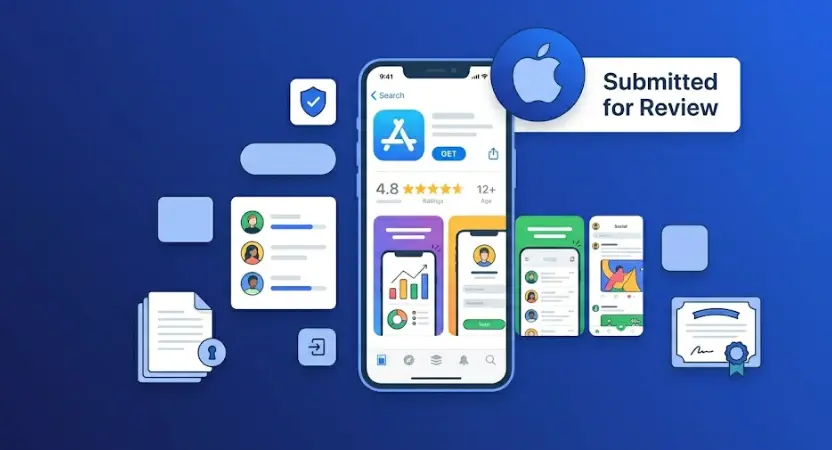
App Store Publishing in 2026
In this article
What You Need Before You Start
The App Store submission process has a reputation for being technical and difficult. The reputation is partly deserved — Apple has stricter requirements than Google Play, and the setup involves more steps. But none of those steps require programming knowledge. They require patience, a checklist, and understanding what Apple is actually checking for.
Before you open App Store Connect, make sure you have everything on this list. Missing any one of these is the most common reason the process stalls:
✓ A finished, tested app
Your app must work completely — all screens navigable, no crashes, no placeholder content, no "coming soon" features. Apple reviews test the app on real devices. Broken functionality is the fastest path to rejection. If you built your app with a no-code tool like FlutterFlow, make sure you've tested it thoroughly on an actual iPhone using the companion app before exporting.
✓ An Apple Developer account ($99/year)
Required to distribute apps through the App Store. This is the only unavoidable cost. The account covers unlimited app submissions, updates, and TestFlight beta testing. Sign up at developer.apple.com — enrollment takes 24–48 hours to process.
✓ An IPA file (your compiled app)
This is the iPhone App Package — the actual compiled binary of your app. If you used FlutterFlow, you generate this via their cloud build feature. If you used a different no-code tool, check their documentation for how to export an IPA. For uploading, you need either a Mac with Transporter or Xcode, or a cloud Mac service.
✓ A privacy policy (publicly accessible URL)
Apple requires a privacy policy for every app — even if your app collects zero data. The policy must be hosted at a public URL (your website, a Google Sites page, or a GitHub Pages site). Free generators like privacypolicygenerator.info take 5 minutes to set up.
✓ App Store listing assets
You need: an app icon (1024×1024px PNG, no rounded corners — Apple adds them), screenshots for at minimum iPhone 6.9" and 6.5" displays, and a short description (30 characters) plus a full description (up to 4,000 characters). Screenshots and the icon can be created for free with Canva or Figma.
✓ A Mac (or a Mac in the cloud)
Required only for the upload step — not for building the app or filling in the listing. If you don't own a Mac, services like MacStadium or MacinCloud rent Mac access from $1/hour. You'll need it for about 15–20 minutes total. Apple's own app "Transporter" (free on the Mac App Store) handles the actual upload.
Good news: Everything except the app itself and the Apple Developer account can be prepared in a single afternoon. The process feels like a lot of steps, but most of them take 5–15 minutes each. The bottleneck is always Apple's review time — not your preparation.
Setting Up Your Apple Developer Account
Your Apple Developer account is the gateway to App Store Connect. The setup takes about 30 minutes of active work plus a 24–48 hour waiting period for Apple to verify your identity.
Create or use an existing Apple ID
Go to developer.apple.com and sign in with an Apple ID. Use a permanent email address — this becomes your developer identity. If you're creating an app for a business, consider using a business email rather than a personal one. You'll need to verify this email before proceeding.
Enroll in the Apple Developer Program
Click "Enroll" and choose between Individual ($99/year, your name appears in the App Store) or Organization ($99/year, your company name appears, requires a D-U-N-S number). Most solo developers and small teams choose Individual. Enter your personal details, agree to the terms, and pay the $99 fee via credit card or PayPal.
Wait for identity verification
Apple manually verifies new developer accounts. This takes 24–48 hours for individuals, and up to 5 business days for organizations. You'll receive a confirmation email when your account is active. Don't try to start the submission process before this — App Store Connect won't give you full access until verification is complete.
Set up two-factor authentication
Apple requires 2FA on all developer accounts. Make sure your Apple ID has 2FA enabled with a trusted phone number or device. You'll need it every time you sign in to App Store Connect. This is non-negotiable — accounts without 2FA cannot submit apps.
Organization enrollment tip: If you're applying as an organization, you need a D-U-N-S number (a business identifier from Dun & Bradstreet). Getting one is free but takes 5–10 business days if you don't already have one. Apply for it before you pay the $99 developer fee, otherwise you'll have a delay after paying.
Preparing Your App for Submission
Before uploading anything to App Store Connect, there's a preparation checklist that most guides skip. Skipping these steps is the primary reason apps get rejected on the first submission.
App quality checklist
Store listing assets to prepare
Build Your App First — Then Publish It
If you haven't built your app yet, our AI Apps course shows you how to create a real iOS app with FlutterFlow — no coding required. Module 0 and Module 1 are completely free. Start today and have something ready to submit in weeks, not months.
Start Free →App Store Connect: Step-by-Step Walkthrough
App Store Connect (appstoreconnect.apple.com) is Apple's web dashboard for managing your apps. Here's exactly what to do from login to submission:
Create a new app record
Click the "+" button next to "Apps" and choose "New App." Select iOS, give your app a name (this is what appears in the App Store — you can change it later before publishing), set the Primary Language, enter your Bundle ID (must match exactly what's in your IPA file), and set an SKU (a unique internal ID you create, like "myapp-001" — not visible to users).
Complete the "App Information" section
Enter your app's subtitle (up to 30 characters — appears under the name in search results, make it descriptive), select the appropriate category (Primary and Secondary), set the content rights declaration, and add your privacy policy URL. The privacy policy field is mandatory — without it, you cannot submit.
Fill in pricing and availability
Go to "Pricing and Availability." Choose Free or set a price tier. Select the countries and regions where your app will be available — you can choose "All Countries and Regions" for maximum reach. If your app is free, this section is straightforward. Paid apps require a bank account connected to App Store Connect for payouts.
Complete the "App Privacy" section
Click "App Privacy" and answer Apple's data collection questionnaire. You'll be asked whether your app collects data, what types (name, email, location, etc.), and how it's used. Be accurate — misrepresenting data collection is a policy violation. If your app truly collects nothing, select "No, I do not collect data from this app." Apple displays your privacy choices as a "Nutrition Label" on the App Store page.
Upload your app build via Transporter
On your Mac, open Transporter (free from the Mac App Store). Sign in with your Apple ID. Drag your IPA file into the Transporter window and click "Deliver." Transporter validates the file against Apple's requirements (checking bundle ID, version number, entitlements) and uploads it. The process takes 2–10 minutes depending on your file size and connection. If Transporter reports errors, fix them before proceeding — common errors are mismatched bundle IDs or missing icons.
Add your build and screenshots to the version
Back in App Store Connect, go to your app's iOS page → "1.0 Prepare for Submission." Select your uploaded build from the dropdown. Upload your screenshots to the appropriate device slots. Write your full description (up to 4,000 characters — write it carefully, this is your main marketing copy). Add keywords (100 characters total, comma-separated — choose terms that aren't already in your app title). Add a support URL and an optional marketing URL.
Complete the content rating questionnaire
Go to "Age Rating" and answer the questionnaire about your app's content — violence, adult content, gambling, etc. Your answers generate the age rating that appears on the App Store. Answer honestly. If you claim your app has no mature content but it does, Apple reviewers will catch it and reject the app for a content rating mismatch.
Add notes for the reviewer and submit
In the "Review Notes" field, add anything that helps the reviewer understand your app: demo login credentials, explanation of any non-obvious functionality, links to any back-end service the app connects to. Clear notes reduce review time and rejection risk. Click "Add to Review" then "Submit for Review." You'll receive an email confirming submission. The wait begins — typically 24–48 hours.
Pro tip — use TestFlight first: Before submitting to the App Store, upload your build to TestFlight (Apple's beta testing platform, also managed through App Store Connect). Invite 3–5 people to test it. TestFlight builds go through a lighter review and are usually approved in hours. Any issues found in testing can be fixed before the real submission — saving you days of re-review time.
Top Rejection Reasons — and How to Avoid Them
About 40% of first-time submissions get rejected. The same issues come up repeatedly. Knowing them in advance means you can check for them before submitting — not after waiting 48 hours for a rejection email.
❌ 1. Missing or broken privacy policy
What Apple says: "Your app's privacy policy URL does not work or the policy does not accurately reflect your app's data practices."
Fix: Generate a policy at privacypolicygenerator.info, host it on any public URL (GitHub Pages, Google Sites, or your website), and test that the URL opens correctly in a private browser window before submitting.
❌ 2. Crashes or broken functionality during review
What Apple says: "Your app crashed on launch / on [specific action] during review."
Fix: Test on a real iPhone, not just in a simulator. Test with a fresh user account (not your development account). Test the exact user flow from the "start" screen with no pre-existing data. If your app connects to a backend, make sure that backend is live and accessible during the review period.
❌ 3. Inaccurate or misleading screenshots
What Apple says: "Your screenshots do not accurately represent the app's current features and UI."
Fix: Screenshots must show exactly what the app looks like right now. Don't use mockup frames showing features you haven't built. Don't show competitor apps. Don't use stock photography as if it were your app's UI.
❌ 4. Requesting permissions without justification
What Apple says: "Your app accesses [camera/location/contacts] but the purpose string does not adequately explain why."
Fix: For every permission your app requests, write a specific, user-facing explanation. Not "We need your location" but "Your location is used to show nearby service providers within 5km of you." The more specific, the better.
❌ 5. App has limited functionality or is not useful enough
What Apple says: "Your app does not provide enough functionality or content to be useful."
Fix: Apple rejects apps that are essentially just wrapped websites, single-screen apps with minimal content, or apps that duplicate another app with no differentiation. Make sure your app has at least 3–5 functional screens with genuine, useful functionality. A portfolio app, a simple utility, or a business tool are all fine — a one-page "coming soon" screen is not.
❌ 6. Missing demo account for reviewer
What Apple says: "We were unable to review your app because it requires us to log in, but no credentials were provided."
Fix: Always provide demo credentials in the "Review Notes" field for any app with a login screen. Create a dedicated reviewer account with pre-populated content so the reviewer can actually use the app's features.
When you get rejected: Don't panic. Read Apple's rejection reason carefully — it includes the specific guideline number (e.g., "Guideline 2.1 — App Completeness"). Look up that guideline in the App Store Review Guidelines document. Most rejections are fixed in under an hour. Reply to the rejection with your fix or send an updated binary. Priority review is available for time-sensitive apps via the Resolution Center.
What Happens After Your App Is Approved
Approval is the beginning, not the end. Here's what to do immediately after your app goes live:
📣 Share your App Store link immediately
Your app's App Store URL is available in App Store Connect as soon as it's approved. Share it with everyone — your network, social media, email list. The first 72 hours after launch often determine whether Apple's algorithm gives you any organic visibility. Early downloads, ratings, and reviews signal to Apple that your app is worth surfacing in search results.
⭐ Ask for reviews strategically
Use Apple's native rating prompt (SKStoreReviewRequest API) to ask users for a review after they've experienced a positive moment in the app — after completing a task, reaching a milestone, or using the app 3+ times. Don't ask immediately on launch. Apps with even 10–20 ratings outperform apps with zero ratings in App Store search significantly.
📊 Monitor your analytics in App Store Connect
App Store Connect shows you impressions, product page views, downloads, and conversion rate for free. Check these weekly. A low conversion rate (under 20–30%) usually means your screenshots or description aren't resonating — and are worth updating. Updates to your listing go live without a new review and take effect within hours.
🔄 Plan your first update
App updates go through the same review process but are typically approved much faster — often within a few hours for established apps in good standing. Plan your first update for 2–4 weeks after launch based on user feedback. Having a regular update cadence (even minor bug fixes) signals to Apple that your app is actively maintained, which helps with search ranking.
The bigger picture
Publishing your first app is a milestone — but the real learning happens after launch. You'll discover how users actually behave in your app (often very differently from how you imagined), which features they use, and where they drop off. Use that data to drive the next version.
If you haven't built your app yet, read our guide on creating an iOS app without coding — it covers FlutterFlow step by step and gets you to a submission-ready IPA file. And if you're also targeting Android, our Android app for free guide covers the Google Play equivalent of this entire process.
Frequently Asked Questions
Can I publish an app to the App Store without being a developer?
Yes. Apple requires a Developer account ($99/year) but no programming skills. The submission process is done through App Store Connect — a web dashboard. If you built your app with a no-code tool like FlutterFlow, you export an IPA file and upload it via Transporter on a Mac. The review, listing, and approval process requires no code at all.
How much does it cost to publish on the App Store?
$99 per year for the Apple Developer Program — that's the only mandatory cost. Publishing updates is free. Apple takes 15% commission on paid app sales for developers earning under $1M/year. Free apps have no commission. Compare this to Google Play's one-time $25 — Apple's annual fee is the main cost difference.
How long does App Store review take?
Typically 24–48 hours for most apps in 2026. New accounts and apps requesting sensitive permissions (camera, location, health data) sometimes take 3–5 days. Resubmissions after rejection are usually faster — often reviewed within hours. You can request expedited review for time-sensitive apps through the Resolution Center.
What are the most common reasons apps get rejected?
The top 6: missing or broken privacy policy, crashes during review, inaccurate screenshots, permissions without justification, insufficient functionality, and no demo credentials for apps with login screens. All of these are fixable — read Apple's rejection reason carefully, fix the specific issue, and resubmit. Most rejections are resolved within the same day.
Do I need a Mac to publish an app to the App Store?
For the upload step, yes — Apple's Transporter app requires macOS. However, you only need it for about 15–20 minutes during the actual upload. If you don't own a Mac, use a cloud Mac service like MacStadium or MacinCloud (from $1/hour). The rest of the process — filling in App Store Connect, uploading screenshots, and managing your listing — is entirely browser-based and works on any computer.
Related Articles
How to Create an iOS App Without Coding in 2026
FlutterFlow, Adalo, Bubble — step-by-step guide to building your app before you publish it.
How to Build and Publish an Android App for Free
The Google Play equivalent of this guide — $25 once vs $99/year for Apple.
AI Apps Course: Build iOS & Android Without Code
From idea to App Store — FlutterFlow, Firebase, AI features. Module 0 is free.