How to Create an iOS App Without Coding in 2026: Complete Guide
In 2026, building a real iOS app no longer requires a developer or months of learning Swift. With no-code tools and AI-powered builders, you can design, build, and publish an app to the App Store yourself — even if you've never written a line of code.
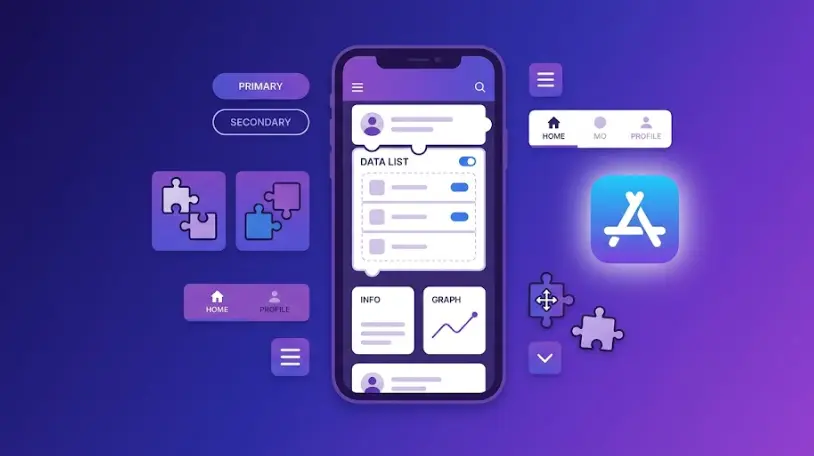
No-Code App Development in 2026
In this article
Is It Really Possible to Create an iOS App Without Coding?
Five years ago, building an iOS app without programming was a marketing promise that rarely delivered. The tools were either too limited to build anything useful, or so complex that you needed coding knowledge anyway. In 2026, the situation has fundamentally changed.
Today's no-code platforms — FlutterFlow, Adalo, Bubble, AppMaster — generate production-quality code from visual interfaces. Apps built with these tools are not toy demos: they run on real iPhones, pass Apple's App Store review, support user authentication, databases, push notifications, and even AI integrations. Thousands of apps currently live on the App Store were built without writing a single line of code.
The addition of AI to these platforms in 2025–2026 pushed things even further. AI can now generate your app's screen layouts, suggest database schemas, write the logic for button actions, and even generate app store screenshots. What used to take a designer and a developer working for two months, a motivated non-programmer can now do alone in a few weeks.
The real shift: No-code is no longer a workaround for people who "can't code." It's a legitimate approach used by entrepreneurs, product managers, and small business owners who want to ship fast without a $50,000+ development budget. The constraint is app complexity, not quality.
That said, "no coding" doesn't mean "no learning." You still need to understand how apps are structured, how data flows between screens, and how to work within the platform's logic system. This article walks you through exactly what's involved — and how to get from idea to App Store without a developer.
Best No-Code Tools for iOS App Creation in 2026
Not all no-code platforms are equal. Some are optimized for simple landing-page-style apps; others can handle complex multi-user platforms. Here's the honest breakdown of the tools that actually work for building iOS apps in 2026:
FlutterFlow
Best overall — visual Flutter app builder with AIFlutterFlow is the leading no-code tool for building iOS (and Android) apps in 2026. It generates real Flutter code under the hood, which means the apps run natively on iPhone — not as web-wrapped views. The visual editor lets you drag and drop UI components, set up Firebase database connections, define navigation flows, and add API integrations without writing code.
In 2025, FlutterFlow added AI-powered features: describe a screen in plain English and it generates the layout. Ask it to set up a Firebase collection and it creates the schema automatically. The result is dramatically faster development — even for complex apps.
Best for: Entrepreneurs and product owners building multi-screen apps with user accounts, real-time databases, and push notifications. Excellent for marketplace apps, booking apps, community platforms, and AI-powered mobile tools.
Adalo
Easiest for beginners — data-driven apps fastAdalo has the gentlest learning curve of any iOS no-code builder. It's designed around the concept of "collections" (database tables) and "lists" (screens that display data), which maps directly to how most simple apps work: a list of items, a detail screen, a form to add new items. You can have a working prototype in under two hours.
Adalo publishes to the App Store and Google Play, handles user authentication out of the box, and supports external API connections. The trade-off is performance: Adalo apps run as hybrid apps (not fully native), so very animation-heavy or high-performance apps may feel slightly slower than FlutterFlow equivalents.
Best for: Internal business apps, directory apps, simple booking systems, and anyone who wants to validate an idea quickly without a steep learning curve.
Bubble
Most powerful — complex logic and web-to-mobileBubble is the most powerful no-code platform available — capable of building complex multi-sided marketplaces, SaaS products, and apps with intricate business logic. Bubble's "Workflows" system lets you define exactly what happens when users take actions, giving you fine-grained control that most no-code tools don't offer.
The important caveat: Bubble builds web apps first. You can wrap a Bubble app for the App Store using BDK Native or similar tools, but it's a web-based experience rather than a true native app. For many use cases this is fine; for apps that need camera access, biometrics, or heavy animations, it's a limitation.
Best for: Founders building complex web-first products (marketplaces, SaaS, two-sided platforms) who also want a mobile presence. Overkill for simple apps — the learning curve is steeper than Adalo or FlutterFlow.
Quick Comparison: Which Tool to Choose
| Tool | True Native iOS | Learning Curve | Best App Type | Starting Price |
|---|---|---|---|---|
| FlutterFlow | ✓ Yes (Flutter) | Medium | Most app types | Free / $30/mo |
| Adalo | Hybrid | Low | Data-driven apps | $36/mo |
| Bubble | ✗ Web only | High | Complex platforms | Free / $29/mo |
| AppMaster | Yes (Go backend) | Medium | Backend-heavy apps | Free / $65/mo |
Our recommendation for most people: Start with FlutterFlow. It has the best balance of power, native iOS performance, and AI features. The learning curve is manageable with a structured course, and the result is a real native app you can publish directly to the App Store.
Step-by-Step: Build Your First iOS App Without Coding
Here's the complete process for going from an app idea to a working app in FlutterFlow. Each step is achievable without any programming knowledge if you follow a structured approach.
Define your app idea and map the screens
Before opening any tool, sketch your app on paper or in a simple diagram. List every screen your app needs (Home, Profile, Detail, Settings, etc.) and what happens when users tap each button. This step takes 1–2 hours but prevents weeks of rebuilding later. Use AI to help: ask ChatGPT to "list all the screens a [your app type] app needs and describe the navigation flow." The output gives you a clear blueprint to build from.
Set up FlutterFlow and create your project
Go to FlutterFlow.io and create a free account. Start a new project and choose a template close to your app type (there are 100+ starting templates including task managers, social feeds, e-commerce, booking apps). Pick your color palette, fonts, and app name. FlutterFlow's AI can generate a full starting design from a text description — write "A fitness tracking app with a workout log, progress charts, and a home screen showing today's plan" and it creates an initial layout for you.
Build your screens with the visual editor
FlutterFlow's canvas works like a sophisticated design tool. Drag widgets (text, buttons, images, lists, forms) from the left panel onto your screen. Each widget has a properties panel on the right where you set colors, fonts, padding, and behavior. Build one screen at a time, starting with the home screen. Use FlutterFlow's component library — pre-built cards, navigation bars, profile headers — to assemble professional-looking screens without designing from scratch.
Set up your database with Firebase
Most useful apps store data. FlutterFlow connects directly to Firebase Firestore — Google's real-time database — with a visual setup wizard. Define your "collections" (users, posts, products, bookings — whatever your app needs) and their fields. FlutterFlow auto-generates the read/write logic for you. Firebase's free tier handles up to 50,000 reads and 20,000 writes per day, which is enough for thousands of active users. No backend code required.
Add actions and navigation logic
In FlutterFlow, "Actions" define what happens when a user taps a button. Open the action flow editor and use a visual flowchart to define: navigate to a new screen, save data to Firestore, send an API request, show a dialog, log the user in. You chain actions together without code. For example: when a user taps "Submit" — validate the form → save data to Firestore → navigate to the Success screen → show a confirmation snackbar. This takes minutes once you understand the action system.
Add user authentication
FlutterFlow has one-click Firebase Authentication setup for email/password, Google Sign-In, and Apple Sign-In. Enable it in the Authentication settings panel, set your login and signup screens, and FlutterFlow handles all the token management, session persistence, and logged-in state logic. Apple Sign-In is required by Apple for any app that offers third-party login — FlutterFlow handles this compliance requirement automatically.
Test your app on a real iPhone
Use FlutterFlow's live preview in the browser to test basic flows. For device testing, download the FlutterFlow companion app from the App Store to your iPhone and test your project there — no Xcode needed. Walk through every user journey: sign up, use the main feature, edit data, navigate back. Fix broken flows and visual issues before building the final version.
Build and publish to the App Store
When your app is ready, use FlutterFlow's cloud build to generate the IPA file (the iPhone app package). You'll need an Apple Developer account ($99/year). Upload the IPA through App Store Connect using Transporter (free Mac app) or a cloud build service. Add your app name, description, screenshots (AI can generate these too), and submit for Apple review. Review typically takes 1–3 business days. Upon approval, your app is live in the App Store worldwide.
Total realistic timeline: Idea to App Store in 2–6 weeks, working 5–10 hours per week. Most of that time is learning the FlutterFlow workflow (1–2 weeks), then building your specific app (1–3 weeks), then handling the App Store submission process (3–7 days). A structured course compresses the learning phase significantly.
Build Your iOS App — Step by Step, No Code Required
Our AI Apps course walks you through FlutterFlow from setup to App Store submission. Module 0 and Module 1 are completely free — no credit card required. Build your first real screen today.
Start Free Lesson →What You Can and Can't Build Without Code
No-code is genuinely powerful — but it has real limits. Understanding them upfront saves you from starting a project that outgrows the tools halfway through.
✓ Works great without code
- Marketplace apps (buyers + sellers)
- Booking and scheduling apps
- Community and social feed apps
- Task managers and productivity tools
- Restaurant menus and ordering apps
- Fitness and habit tracking apps
- Directory and listing apps
- AI-powered chat features
- E-commerce with payments (Stripe)
- Portfolio and showcase apps
- Internal business tools
- Educational content apps
✗ Needs custom development
- Real-time multiplayer games
- Complex AR/VR experiences
- High-frequency trading or fintech
- Custom hardware integrations
- Very complex algorithms (ML training)
- Apps needing deep OS-level access
- Extremely high-load platforms (millions of concurrent users)
- Apps with very specific custom animations
The "can I scale this?" question: No-code apps can scale — but platform costs scale with your users. At 10,000 active users, FlutterFlow + Firebase costs $50–$200/month. At 100,000 users, you may hit $500–$2,000/month and start considering moving to custom infrastructure. For most founders, no-code is the right choice until you've validated product-market fit. You can always rebuild in code later; the goal first is to ship and learn.
Cost Breakdown: No-Code vs Traditional Development
The financial case for no-code is compelling. Here's a realistic cost comparison for building a standard iOS app with user authentication, a database, and a clean UI:
| Cost item | No-Code (FlutterFlow) | Traditional Developer |
|---|---|---|
| Build cost | $0 (you build it yourself) | $15,000–$80,000 |
| Platform/tool cost | $30–$65/month (no-code platform) | Included in developer fee |
| Backend / database | $0–$25/month (Firebase free tier covers most) | $50–$300/month (custom server) |
| Apple Developer Program | $99/year (required) | $99/year (required) |
| Time to first version | 2–6 weeks | 3–6 months |
| Changes and updates | You do it yourself in minutes | $100–$200/hr developer time |
| First-year total | ~$500–$1,000 | $20,000–$90,000 |
The numbers are not close. For an MVP or a small business app, no-code is the obvious choice. Even for more ambitious products, building the first version in no-code, validating with real users, and then deciding whether to rebuild in code — is a dramatically smarter use of money than spending $50,000 on custom development before you know if anyone wants the app.
How to Publish Your App to the App Store
Publishing to the App Store has a reputation for being difficult. It has gotten easier, but there are genuine requirements you need to understand. Here's what the process looks like when using FlutterFlow:
1. Join the Apple Developer Program
Go to developer.apple.com, create an Apple ID if needed, and enroll in the Apple Developer Program for $99/year. This is the only Apple fee and it covers both iOS and macOS distribution. Enrollment takes 24–48 hours to process. You'll need a credit card and a real phone number.
2. Configure your app bundle and signing
In FlutterFlow, go to Settings → App Details and set your Bundle ID (a unique identifier like com.yourname.yourapp). Connect your Apple Developer account to FlutterFlow's cloud build service — it handles code signing certificates and provisioning profiles automatically. This process used to require Xcode expertise; FlutterFlow abstracts it entirely.
3. Build the IPA and upload to App Store Connect
Trigger a cloud build in FlutterFlow. When it completes (usually 5–15 minutes), download the IPA file. Open App Store Connect (appstoreconnect.apple.com), create a new app record with your bundle ID, and upload the IPA using Apple's Transporter app or Xcode. This step does technically require a Mac for Transporter — or use a Mac-in-the-cloud service if you're on Windows.
4. Complete the App Store listing
In App Store Connect, fill in: app name, subtitle, description (up to 4,000 characters — write a clear, keyword-rich description), keywords (100 characters — choose carefully for discovery), support URL, privacy policy URL (required), and age rating. You'll also need screenshots: at minimum for iPhone 6.5" and 5.5" displays. Use AI image generators or tools like AppLaunchpad to create professional screenshots quickly.
5. Submit for review and wait
Click "Submit for Review." Apple's team reviews the app manually — usually within 24–72 hours. Common rejection reasons: missing privacy policy, requesting permissions without clear justification, broken functionality during review, or misleading screenshots. Read Apple's App Store Review Guidelines before submitting to avoid the most common rejections. Apps built with FlutterFlow typically pass review without issues as long as the app is functional and the listing is complete.
After approval: Your app is live in the App Store worldwide. Updates follow the same process — build a new version, bump the version number, upload, and submit. Small updates (bug fixes, content changes) typically get approved in hours. Major feature updates take 1–3 days. You control when updates go live, and you can use phased rollouts to release to a small percentage of users first.
Frequently Asked Questions
Can I really create an iOS app without coding?
Yes. No-code platforms like FlutterFlow, Adalo, and Bubble let you build fully functional iOS apps with a drag-and-drop visual interface. The apps have real screens, user accounts, databases, and can be published to the App Store. The main limitation is very complex custom logic — for 80–90% of standard app ideas, no-code is entirely sufficient. You still need to learn the platform, but no programming knowledge is required.
What is the best no-code tool to create an iOS app?
In 2026, FlutterFlow is the best choice for most people. It generates real native Flutter code, publishes directly to the App Store, supports Firebase for the backend, and has AI-assisted design features. Adalo is easier for complete beginners who want something simpler. Bubble is the most powerful but has a steeper learning curve and produces web apps rather than true native iOS apps.
How much does it cost to create an iOS app without coding?
The main mandatory cost is the Apple Developer Program at $99/year — required to publish to the App Store. Beyond that: FlutterFlow has a free tier for learning; paid plans start at $30/month when you're ready to publish. Firebase (database/backend) is free for small apps. Total realistic cost for a simple app: $99–$460 in the first year. Compare this to $15,000–$80,000 for a custom developer — no-code is a 95%+ cost reduction.
Do I need a Mac to publish an iOS app?
Traditionally yes, but FlutterFlow's cloud build service generates the IPA file without requiring a Mac. For the final upload to App Store Connect, you need Apple's Transporter app which requires macOS. If you don't have a Mac, you can use a Mac-in-the-cloud service like MacStadium or use a friend's Mac for the 10-minute upload step. Some platforms handle the entire submission automatically. In 2026, a Mac is helpful but not a hard blocker.
How long does it take to build an iOS app without coding?
A simple 3–5 screen app takes 1–3 days to build in FlutterFlow once you know the platform. Learning the platform takes 1–2 weeks with a structured course. An app with user login, a real-time database, and push notifications takes 1–3 weeks total. The full timeline from zero knowledge to App Store: 2–6 weeks working 5–10 hours per week. Planning your screens carefully before you start building is the single biggest time-saver.
Related Articles
How to Write a Python Script with AI in 2026
Real examples, proven prompts, and the minimum Python knowledge you need to use AI scripts reliably.
How to Write Python Code with AI: Real Prompts 2026
The exact prompts and workflows professionals use with ChatGPT and Claude every day.
Python vs Excel vs No-Code: Which to Choose?
Honest comparison with cost breakdown, 7 real scenarios, and a decision framework.