Automate Slack Notifications with n8n — 7 Practical Examples
Most guides on this topic stop at "send a message when a form is submitted." That's fine, but it's the least interesting thing you can do. These 7 workflows cover what teams actually run in production — from deploy alerts with commit context to approval flows where Slack buttons trigger follow-up actions, to AI-powered feedback routing. Each one includes the exact node sequence and the configuration details that make it work in practice, not just in theory.
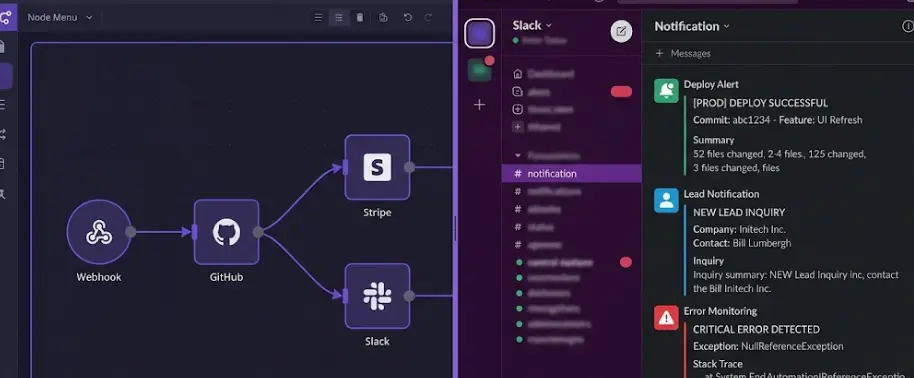
Before the examples: how n8n connects to Slack
Setting up the Slack credential in n8n takes about 10 minutes and only needs to be done once. Go to api.slack.com/apps, create a new app, add the chat:write and channels:read OAuth scopes, install the app to your workspace, and copy the Bot Token. In n8n, create a new Slack credential, paste the token, and every Slack node in every workflow can use it. All 7 examples below reuse this same credential.
The Slack node works on n8n Cloud ($20/month Starter) and self-hosted (free, unlimited). There is no cost on Slack's side — their API is free for workspace automation.
7 workflows covered
- GitHub deploy → #deployments alert with commit context
- New lead from any form → sales channel ping
- n8n error monitor → #ops alert with direct fix link
- Morning digest from Notion/Linear → Slack thread
- Stripe payment → revenue alert with MRR running total
- Customer feedback → AI classify → routed to right channel
- Approval request → Slack buttons → decision recorded
- Slack configuration that prevents notification overload
- FAQ
GitHub Push → #deployments Alert with Commit Context
Triggered on every push to main or release branchThe standard way teams handle deploy notifications is someone posts "deployed v2.4.1" to Slack manually — which means it happens inconsistently, without context, and often not at all when people are busy. What teams actually need from a deploy alert: which commits went out, who authored them, what the previous version was, and a direct link to the GitHub comparison so anyone can see exactly what changed.
The n8n workflow uses the GitHub Trigger node set to the push event, filtered to the main branch. The trigger payload includes the full commit list, each author, the before/after commit SHA, and the compare URL. A Set node extracts the last 3 commit messages (most pushes are 1–3 commits), formats them with author names, and the Slack node posts to #deployments using Block Kit — so the message has a header line with the branch name and time, a body with the commit list, and a button linking directly to the GitHub compare page.
The Block Kit formatting is worth the extra 5 minutes of setup. Plain text deploy messages in Slack get ignored. A message with a clear header ("main — 14:32"), commit list with author names, and a green "View changes" button gets clicked — which means the team actually knows what's running in production.
Key config detail: In the Set node, use the expression {{ $json.commits.slice(0,3).map(c => `• ${c.message} — ${c.author.name}`).join('\n') }} to extract the last 3 commit messages with authors. The GitHub payload includes up to 20 commits per push — you only want the recent ones.
New Lead → Sales Channel Alert with Full Context
Works with any form: Typeform, Webflow, WordPress, custom HTMLLead notification is probably the most common Slack automation, and most implementations are bad — they send the name and email and nothing else. The reason the rep still has to open the CRM to understand the lead is that the automation didn't include the context: which page they came from, what they said in the message field, which UTM source brought them in. That context is what determines how to respond, and it's all available in the webhook payload.
The workflow uses a Webhook trigger node as the form's submission endpoint (or connects to Typeform/Webflow via their native n8n nodes). After the webhook receives the submission, an HTTP Request node immediately calls HubSpot's Contacts API to create the CRM record — so by the time the Slack message lands, the CRM record already exists and the message can link to it directly. The Slack node posts to #sales with the person's name, email, company (if the form includes it), the form page URL (pass this as a hidden field), their message verbatim, and the UTM source.
For forms that don't have a UTM field, you can pass the referrer URL as a hidden field using JavaScript: document.getElementById('hidden_referrer').value = document.referrer; on form load. It's not perfect, but it tells you whether the lead came from a blog post, organic search, or a specific campaign page — which changes how the sales rep opens the conversation.
❌ Bad lead notification
New lead: John Smith — john@company.com
✅ Useful lead notification
John Smith (Acme Corp) via /pricing page · Google Ads · "Looking to automate invoice processing" · View in HubSpot →
n8n Error Monitor → #ops Alert with Direct Fix Link
Runs every 15 minutes, only fires when new failures foundFailed n8n workflows are silent by default — they show up as red executions in the dashboard, but nobody knows unless they're actively watching. For any workflow that runs on a schedule or processes incoming data, a failure that goes unnoticed for 6 hours is a real problem: lead notifications not sent, invoices not processed, reports not delivered. This monitoring workflow fixes that without requiring you to log into n8n to check.
The setup: a Schedule Trigger fires every 15 minutes. An HTTP Request node calls the n8n API at /api/v1/executions?status=error&limit=50 with your n8n API key as a bearer token. The response includes all failed executions from the last run period. A Code node compares the execution IDs against a Google Sheets log of already-reported failures, filters out the ones already sent, and groups the new ones by workflow name. For each new group, a Slack message fires to #ops with the workflow name, failure count, time of last failure, and a direct URL to that workflow's execution log in n8n.
The Google Sheets deduplication step is what makes this useful rather than noisy. Without it, the same failed execution gets reported every 15 minutes until someone fixes it. With it, each failure fires once, and the ops team sees one message per incident — not 24 messages by the time they get back from lunch. The Sheets row gets updated with reported_at timestamp so you can also tell how long an issue went unresolved.
Build Real n8n Workflows — Step by Step
The LearnForge AI Apps course covers n8n from zero to production-ready automations, including Slack integrations, AI agents, and real-world business workflows. Module 1 is completely free.
Start Free Module →Morning Digest from Notion or Linear → Slack Thread
Every weekday at 8:45 AM, posted as a thread to keep channels cleanTeams that rely on standups to know what everyone's working on are essentially using a synchronous meeting to share information that could be async. This workflow doesn't replace standups — it makes them better by giving everyone the context before they join. At 8:45am every weekday, the workflow pulls the day's priorities from wherever the team actually tracks them.
For teams using Linear: the HTTP Request node calls the Linear GraphQL API to get all issues assigned to team members with a "In Progress" or "Today" status label. For Notion: the Notion node queries a database filtered by the "Today" date property. The Code node formats this into a Slack message grouped by person — each person's name followed by their 1–3 items for the day. The key formatting choice is posting to Slack with reply_broadcast: false in a designated thread rather than as a top-level message — this keeps the main channel clean while giving everyone a place to add updates during the day.
The Linear GraphQL query that does the filtering is the most setup-intensive part. You need to know your team ID and label IDs, which you can get from the Linear settings page. Everything else — the Slack formatting, the schedule trigger — is straightforward. Once it's running, teams consistently report that standups get shorter because people already know the context before they show up.
Stripe Payment → Revenue Alert with Running MRR
Triggered on every successful charge, includes cumulative totalA Slack ping every time revenue comes in sounds frivolous until you've experienced it on a team. It's not about the $49 — it's about the signal that the product is working, and the fact that everyone on the team knows it in real time. Stripe's native notifications are email-only, which means they go unread. A Slack message in #revenue is impossible to miss and impossible to ignore.
The workflow uses the Stripe Trigger node set to charge.succeeded events. The payload includes the customer email, amount, currency, and the subscription plan name (if applicable). After the Stripe node, an HTTP Request node calls the Stripe API to pull the current month's total revenue using the balance transactions endpoint — /v1/balance_transactions?type=charge&created[gte]={start_of_month} — and sums the amounts. The Slack message includes: the customer name, plan, amount paid, and the month-to-date total. You always know exactly where you are relative to last month or your MRR goal without opening Stripe.
One practical detail: Stripe amounts are in cents (integer), so amount / 100 in the Set node before formatting. Also set the Stripe Trigger's production/test mode to match your environment — test mode fires on Stripe test events only, which is useful while you're building and testing the workflow before going live.
Customer Feedback → AI Classification → Routed to Right Channel
Triggered on Typeform / survey submissionCustomer feedback is only useful if the right people see it. A bug report that lands in #marketing is a bug report that doesn't get fixed. A feature request that lands in #support gets logged nowhere. The usual solution is to read every submission and paste it to the right channel manually — which takes time and still has coverage gaps when inboxes are busy.
This workflow routes feedback automatically. The Typeform Trigger (or Webhook for any other survey tool) receives the submission. The AI Agent node — set up with GPT-4o and a system prompt — reads the response and classifies it into one of four categories: Bug Report, Feature Request, Billing Issue, or General Feedback. The prompt is straightforward: you describe each category in 1–2 sentences and tell the model to return a JSON object with { "category": "Bug Report", "urgency": "high", "one_line_summary": "..." }. The IF node then reads the category field and branches to the appropriate Slack channel: #engineering for bugs, #product for feature requests, #billing for billing issues, #cs-general for everything else.
The urgency field in the AI response lets you add a second condition: if urgency is "high", tag the channel lead by name in the Slack message (@username in Block Kit pulls attention even in busy channels). For normal urgency, the message is untagged. This prevents the support team from being pinged for every "love the product" NPS response while ensuring critical bug reports get immediate attention.
Approval Request → Slack Buttons → Decision Recorded
Two-webhook architecture: request + button-click responseThis is the most technically involved of the seven, but also the most impactful for operations teams. Purchase requests, time-off approvals, content sign-offs, vendor onboarding — any decision that needs a manager's explicit sign-off before an action is taken. The current state at most companies: a form, then an email, then a Slack message asking if someone saw the email, then the actual decision three days later. The approval flow collapses all of that into one Slack message that gets answered in minutes.
The architecture uses two separate n8n workflows. Workflow A receives the request (via a Google Form webhook or internal tool), formats the data using a Set node, and sends a Slack message with Block Kit interactive buttons — Approve and Reject. The button payload is configured with a response URL that points to Workflow B's Webhook trigger URL. When the manager clicks a button, Slack sends a POST request to Workflow B with the action ID (approve/reject), the message context, and the user who clicked. Workflow B then records the decision in a Google Sheet (timestamp, decision, approver), notifies the requester via email or Slack DM with the outcome, and — if approved — triggers whatever action was requested (creates a purchase order draft, updates a status in your project management tool, etc.).
The two-workflow design is intentional: Workflow A can trigger immediately without waiting, and Workflow B only runs when someone actually clicks a button. Trying to do this in one workflow with a Wait node works but creates issues when n8n restarts — the wait state doesn't always survive. The two-webhook pattern is more reliable in production.
Critical Slack setup step: For interactive buttons to work, you must enable Interactivity in your Slack app settings at api.slack.com and set the "Request URL" to your Workflow B webhook URL. Without this step, buttons render but clicking them does nothing.
The thing that makes Slack automations fail: notification overload
Teams that build one or two Slack automations and then stop building more often stop because the first few created noise. Every GitHub commit fires a message. Every Typeform entry fires a message. Nobody reads them because there are too many. The problem isn't the automation — it's the configuration.
Three things that fix it. First: dedicated channels. #deployments, #sales-alerts, #ops-errors, #revenue — people join only the channels relevant to their role, and the signal-to-noise ratio stays high. A lead notification in a #sales-only channel is useful. The same notification in #general is spam.
Second: threshold conditions. Don't fire a notification on every execution — only when something meaningful changes. For the error monitor (example 3), only fire when new failures appear, not on every scheduled check. For inventory alerts, only fire when stock drops below the threshold, not on every check that confirms stock is fine. An IF node before the Slack node handles this: if the condition isn't met, the branch ends without posting.
Third: deduplication for recurring checks. If you're polling for something every 15 minutes, you need a way to track what you've already reported and skip it on subsequent runs. A small Google Sheet or Airtable table that logs reported IDs works well. The Code node compares the current results against the log, filters out anything already reported, and only sends messages for genuinely new items. Example 3 above uses this pattern — and it's the pattern that makes error monitoring actually useful instead of annoying.
Frequently Asked Questions
How do I send a Slack message with n8n?
Add a Slack node to your workflow, connect it with OAuth2 credentials (create a Slack app at api.slack.com, add chat:write and channels:read scopes, install it to your workspace, copy the Bot Token). In n8n, create a new Slack credential with that token, select Post Message action, choose your channel, enter the message. The whole setup takes about 10 minutes and works across all 7 examples in this article using the same credential.
What is the difference between the n8n Slack node and the Slack Trigger node?
The Slack node sends actions — post a message, create a channel, upload a file, invite a user. The Slack Trigger node listens for events inside Slack — someone sends a message, reacts with an emoji, a workflow button is clicked — and starts an n8n workflow when that event fires. The Trigger uses an API Token credential (not OAuth2) and requires Event Subscriptions to be enabled on your Slack app. Most of the examples in this article use the Slack node to send; example 7's button response is handled by a Webhook trigger, not the Slack Trigger node.
Does the n8n Slack integration work on the free plan?
Yes, on every plan. Self-hosted n8n is free with unlimited executions — you pay only for the server (typically $6–12/month on a basic VPS). n8n Cloud Starter is $20/month with 2,500 executions. The Slack API itself has no cost for workspace automation. Running all 7 workflows in this article on the Cloud Starter plan would use roughly 200–400 executions per day depending on how often your scheduled workflows fire — well within the 2,500/month limit.
Can n8n send Slack messages with buttons?
Yes. Use the Slack node with Block Kit JSON in the message body — Block Kit supports button elements that, when clicked, send a POST request to any URL you specify (your Workflow B webhook). You also need to enable Interactivity in your Slack app settings and set the Request URL to your n8n webhook. The approval flow in example 7 above is exactly this pattern — it works reliably in production and doesn't require any code beyond the Block Kit JSON structure.
How do I avoid Slack notification spam from n8n automations?
Three patterns that work: dedicated channels per workflow type so people opt into only what's relevant to them; IF nodes before Slack nodes that only fire when something meaningful happens (not on every execution); and deduplication for polling workflows using a Google Sheet or Airtable to track what's already been reported. The error monitor in example 3 demonstrates all three. Most Slack notification fatigue problems come from workflows that fire on every trigger event instead of only when the event is genuinely actionable.
Which is better for Slack automation — n8n, Zapier, or Make?
n8n is better when you need conditional routing (different channels based on data values), interactive messages (buttons that trigger follow-up workflows), or the self-hosted option to avoid per-task pricing. Zapier handles simple one-step notifications with less initial setup. Make (formerly Integromat) is comparable to n8n in capability but charges per operation — at 5,000+ operations/month, n8n's flat pricing is consistently cheaper. For the approval flow and AI-based routing in examples 6 and 7, n8n's multi-branch logic and AI Agent node make it the practical choice.
Related Articles
n8n Automation: 15 Real-World Examples That Save Hours Every Week
CRM syncs, AI email routing, invoice processing — exact node setups for 15 production workflows.
n8n AI Agent Tutorial: Build a Production-Ready Agent Without Code
Configure the AI Agent node, add memory, connect live tools — step by step, no code required.
n8n Tutorial for Beginners: Build Your First Workflow in 20 Minutes
Webhook → Google Sheets → Slack. Build and activate your first real n8n automation from scratch.
Ready to Build These Automations?
The LearnForge AI Apps course walks you through n8n from first workflow to real production systems — Slack integrations, AI agents, and everything in between. Start with the free module, no credit card needed.
Start Free Module →