Python Script to Organize Files Automatically: Step-by-Step Guide 2026
Your Downloads folder is a mess. Your Desktop is chaos. In this guide you will write a Python script from scratch — step by step — that sorts, renames, and cleans your files automatically. No prior experience needed.
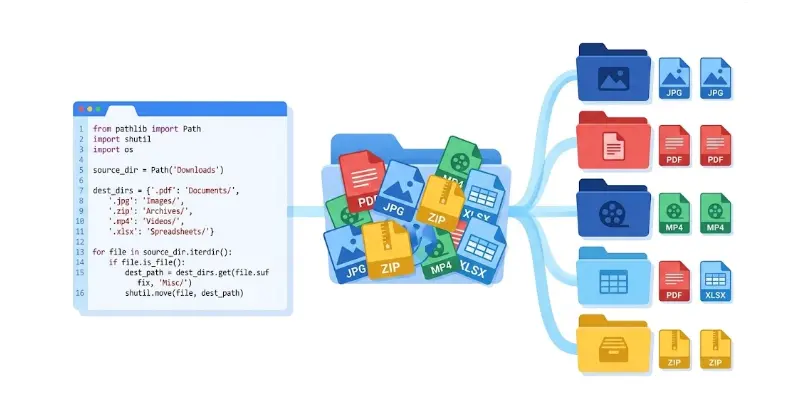
Complete beginners who know basic Python (variables, loops, functions). You will build a working file organizer from line 1 — explained every step of the way. All code is copy-paste ready.
1. The Problem: Why Your Files Are Always a Mess
Here is a common situation. You open your Downloads folder and you see 847 files. There are PDFs, ZIP archives, screenshots, invoices, random CSV exports, and videos — all dumped in one flat list with names like Untitled (3).pdf, screenshot_2024-09-11.png, and final_FINAL_v2_USE_THIS.docx.
The manual fix takes forever. You sort, drag, create folders, accidentally move the wrong thing, and within two weeks — it's a mess again.
💡 The Python solution: Write the sorting rules once. Run the script whenever you want (or schedule it to run automatically). Your files end up exactly where they should be — every single time, in under 3 seconds.
By the end of this guide you will have a working Python script that sorts any folder automatically. It will take you about 20 minutes to build. Then it will save you hours every year.
2. What You Need (Spoiler: Almost Nothing)
Already installed on most Macs. Download from python.org for Windows.
We use only built-in modules: pathlib, shutil, datetime, os.
VS Code, PyCharm, or even Notepad. Save your file as organizer.py.
Verify your Python version by opening Terminal (Mac) or Command Prompt (Windows) and running:
python3 --version
# Should show: Python 3.6.x or higher
3. Understanding pathlib — Your New Best Friend
Before writing the organizer, you need to understand pathlib. It is the modern way Python handles file paths — and it is surprisingly readable. Here is a quick crash course:
from pathlib import Path

# Point to a folder
folder = Path("/Users/yourname/Downloads")

# Point to a specific file
file = Path("/Users/yourname/Downloads/invoice_march.pdf")

# Get just the filename: "invoice_march.pdf"
print(file.name)

# Get just the extension: ".pdf"
print(file.suffix)

# Get the filename without extension: "invoice_march"
print(file.stem)

# List all files in a folder
for item in folder.iterdir():
    print(item.name)

# Check if it's a file (not a subfolder)
if file.is_file():
    print("It's a file")

# Build a path by joining parts (works on Windows AND Mac)
new_path = folder / "Images" / "photo.jpg"
print(new_path)  # /Users/yourname/Downloads/Images/photo.jpg

# Create a folder (ok if it already exists)
(folder / "Images").mkdir(exist_ok=True)
Key insight: The / operator in pathlib builds paths — it doesn't divide numbers. folder / "Images" creates the path Downloads/Images/. This works identically on Windows, Mac, and Linux.
4. Build the File Organizer Step by Step
Let's build the script one piece at a time. You will understand every line before we put it all together.
Define your file type rules
First, create a dictionary that maps folder names to lists of file extensions. This is the "brain" of your organizer — edit it however you like.
# organizer.py — Step 1: define your rules

FILE_RULES = {
    "Images":       [".jpg", ".jpeg", ".png", ".gif", ".webp", ".heic", ".svg"],
    "Documents":    [".pdf", ".doc", ".docx", ".txt", ".odt", ".pages"],
    "Spreadsheets": [".xls", ".xlsx", ".csv", ".numbers", ".ods"],
    "Videos":       [".mp4", ".mov", ".avi", ".mkv", ".m4v", ".wmv"],
    "Audio":         [".mp3", ".wav", ".flac", ".aac", ".m4a"],
    "Archives":     [".zip", ".rar", ".tar", ".gz", ".7z"],
    "Code":          [".py", ".js", ".html", ".css", ".json", ".sql", ".sh"],
    "Installers":   [".dmg", ".pkg", ".exe", ".msi", ".deb"],
}
# Files not matching any rule → go to "Other"Write a helper function to look up the folder
Given a file extension, this function returns the correct destination folder name.
# organizer.py — Step 2: lookup function

def get_destination(extension: str) -> str:
    """Return folder name for a given file extension."""
    ext = extension.lower()  # ".JPG" → ".jpg"
    for folder_name, extensions in FILE_RULES.items():
        if ext in extensions:
            return folder_name
    return "Other"  # fallback for unknown types

# Quick test:
print(get_destination(".pdf"))   # → "Documents"
print(get_destination(".mp4"))   # → "Videos"
print(get_destination(".xyz")) # → "Other"Add a dry-run mode (always start here)
Before moving any files, add a dry-run mode that only prints what would happen. This lets you verify the logic is correct before anything moves.
# organizer.py — Step 3: dry-run preview
from pathlib import Path

def preview_organization(folder_path: str) -> None:
    """Print what would happen — without moving anything."""
    folder = Path(folder_path)
    print(f"🔍 Preview for: {folder}\n")

    for file in sorted(folder.iterdir()):
        if file.is_dir():
            continue  # skip subfolders
        destination = get_destination(file.suffix)
        print(f"  {file.name:<40} →  {destination}/")

# Run preview first
preview_organization("/Users/yourname/Downloads")
✅ Run this first. Check the output. Make sure every file is going to the right folder. Only then move to Step 4.
Move the files for real
Once the preview looks correct, add the actual move logic. We handle the case where two files have the same name to avoid overwriting:
# organizer.py — Step 4: move files
import shutil
from pathlib import Path

def organize_folder(folder_path: str) -> None:
    folder = Path(folder_path)
    moved = 0
    skipped = 0

    for file in folder.iterdir():
        if file.is_dir():
            continue

        # Find the destination folder
        dest_folder = folder / get_destination(file.suffix)
        dest_folder.mkdir(exist_ok=True)
        dest_file   = dest_folder / file.name

        # Handle name collision: add a counter suffix
        counter = 1
        while dest_file.exists():
            dest_file = dest_folder / f"{file.stem}_{counter}{file.suffix}"
            counter += 1

        shutil.move(str(file), str(dest_file))
        print(f"✅ Moved:    {file.name}  →  {dest_file.parent.name}/")
        moved += 1

    print(f"\nDone. Moved {moved} files. Skipped {skipped} subfolders.")

organize_folder("/Users/yourname/Downloads")
5. Upgrade: Sort by Date Instead of Type
Sorting by type is great for a Downloads folder. But for a photo library or log archive, sorting by date makes more sense. Here is how to switch modes:
# Sort files into Year/Month subfolders based on last-modified date
import shutil, datetime
from pathlib import Path

def organize_by_date(folder_path: str) -> None:
    folder = Path(folder_path)
    moved  = 0

    for file in folder.iterdir():
        if file.is_dir():
            continue

        # Read the file's last-modified timestamp
        mtime      = datetime.datetime.fromtimestamp(file.stat().st_mtime)
        year_dir   = folder / str(mtime.year)
        month_dir  = year_dir / mtime.strftime("%m-%B")  # "03-March"
        month_dir.mkdir(parents=True, exist_ok=True)

        dest = month_dir / file.name
        counter = 1
        while dest.exists():
            dest = month_dir / f"{file.stem}_{counter}{file.suffix}"
            counter += 1

        shutil.move(str(file), str(dest))
        print(f"📅 {file.name}  →  {mtime.year}/{mtime.strftime('%m-%B')}/")
        moved += 1

    print(f"\n✅ Sorted {moved} files by date.")

organize_by_date("/Users/yourname/Photos/Unsorted")
A folder with 2,000 mixed photos becomes a clean archive like 2024/06-June/, 2024/12-December/, 2025/01-January/ — automatically.
6. Upgrade: Auto-Delete Old Files
Need to clear out files older than 30 days? Or archive anything not touched in 3 months? Python can do that in one small function:
import shutil, datetime
from pathlib import Path

def archive_old_files(
    folder_path: str,
    archive_path: str,
    days_old: int = 30,
    dry_run: bool = True       # set to False to actually move
) -> None:
    folder  = Path(folder_path)
    archive = Path(archive_path)
    archive.mkdir(parents=True, exist_ok=True)

    cutoff = datetime.datetime.now() - datetime.timedelta(days=days_old)
    moved  = 0

    for file in folder.iterdir():
        if file.is_dir():
            continue

        last_modified = datetime.datetime.fromtimestamp(file.stat().st_mtime)

        if last_modified < cutoff:
            action = f"Would archive" if dry_run else "Archived"
            print(f"{action}: {file.name}  (last modified: {last_modified.date()})")

            if not dry_run:
                shutil.move(str(file), str(archive / file.name))
            moved += 1

    label = "Would move" if dry_run else "Moved"
    print(f"\n{label} {moved} files older than {days_old} days.")
    if dry_run:
        print("  → Run with dry_run=False to execute.")

# Preview first (safe)
archive_old_files(
    folder_path  = "/Users/yourname/Downloads",
    archive_path = "/Users/yourname/Downloads/_Archive",
    days_old     = 30,
    dry_run      = True   # change to False when ready
)
⚠️ Always keep dry_run=True the first time you run it. Read the output carefully. Only switch to False once you are certain the right files are being targeted.
7. The Full Production Script
Here is everything combined into one clean, production-ready script with a simple command-line interface:
#!/usr/bin/env python3
"""
organizer.py — Auto File Organizer
Usage:
  python3 organizer.py /path/to/folder           # sort by type (dry run)
  python3 organizer.py /path/to/folder --run      # sort by type (execute)
  python3 organizer.py /path/to/folder --by-date  # sort by date (dry run)
"""
import sys
import shutil
import datetime
from pathlib import Path

FILE_RULES = {
    "Images":       [".jpg", ".jpeg", ".png", ".gif", ".webp", ".heic", ".svg"],
    "Documents":    [".pdf", ".doc", ".docx", ".txt", ".odt", ".pages"],
    "Spreadsheets": [".xls", ".xlsx", ".csv", ".numbers", ".ods"],
    "Videos":       [".mp4", ".mov", ".avi", ".mkv", ".m4v"],
    "Audio":         [".mp3", ".wav", ".flac", ".aac", ".m4a"],
    "Archives":     [".zip", ".rar", ".tar", ".gz", ".7z"],
    "Code":          [".py", ".js", ".html", ".css", ".json", ".sql"],
    "Installers":   [".dmg", ".pkg", ".exe", ".msi"],
}

def get_destination(extension: str) -> str:
    ext = extension.lower()
    for folder_name, exts in FILE_RULES.items():
        if ext in exts:
            return folder_name
    return "Other"

def safe_move(src: Path, dest_folder: Path) -> Path:
    """Move file; auto-rename if destination already exists."""
    dest = dest_folder / src.name
    counter = 1
    while dest.exists():
        dest = dest_folder / f"{src.stem}_{counter}{src.suffix}"
        counter += 1
    shutil.move(str(src), str(dest))
    return dest

def organize_by_type(folder: Path, dry_run: bool = True) -> None:
    moved = 0
    for file in sorted(folder.iterdir()):
        if file.is_dir():
            continue
        dest_folder = folder / get_destination(file.suffix)
        if dry_run:
            print(f"  [DRY RUN] {file.name:<40} →  {dest_folder.name}/")
        else:
            dest_folder.mkdir(exist_ok=True)
            result = safe_move(file, dest_folder)
            print(f"  ✅ {file.name:<40} →  {result.parent.name}/")
        moved += 1
    label = "Would move" if dry_run else "Moved"
    print(f"\n{label} {moved} file(s).")
    if dry_run:
        print("  Add --run to execute.")

def organize_by_date(folder: Path, dry_run: bool = True) -> None:
    moved = 0
    for file in sorted(folder.iterdir()):
        if file.is_dir():
            continue
        mtime      = datetime.datetime.fromtimestamp(file.stat().st_mtime)
        month_dir  = folder / str(mtime.year) / mtime.strftime("%m-%B")
        if dry_run:
            print(f"  [DRY RUN] {file.name:<40} →  {mtime.year}/{mtime.strftime('%m-%B')}/")
        else:
            month_dir.mkdir(parents=True, exist_ok=True)
            safe_move(file, month_dir)
            print(f"  📅 {file.name:<40} →  {mtime.year}/{mtime.strftime('%m-%B')}/")
        moved += 1
    label = "Would move" if dry_run else "Moved"
    print(f"\n{label} {moved} file(s).")

if __name__ == "__main__":
    if len(sys.argv) < 2:
        print("Usage: python3 organizer.py /path/to/folder [--run] [--by-date]")
        sys.exit(1)

    target   = Path(sys.argv[1])
    execute  = "--run" in sys.argv
    by_date  = "--by-date" in sys.argv

    if not target.is_dir():
        print(f"Error: '{target}' is not a valid folder.")
        sys.exit(1)

    mode = "DATE" if by_date else "TYPE"
    run  = "LIVE" if execute else "DRY RUN"
    print(f"📂 Organizing: {target}")
    print(f"   Mode: {mode}  |  {run}\n")

    if by_date:
        organize_by_date(target, dry_run=not execute)
    else:
        organize_by_type(target, dry_run=not execute)
Save this as organizer.py and use it like this:
# Preview (safe — nothing moves)
python3 organizer.py ~/Downloads

# Execute — sort by type
python3 organizer.py ~/Downloads --run

# Execute — sort by date
python3 organizer.py ~/Downloads --run --by-date
8. Run It Automatically (No Manual Clicks)
The real power comes when you never have to remember to run the script. Set it up once and forget it.
Mac / Linux — cron (runs daily at 9 AM)
# Open crontab: crontab -e  →  add this line:
0 9 * * * /usr/bin/python3 /Users/yourname/scripts/organizer.py /Users/yourname/Downloads --run >> /tmp/organizer.log 2>&1
The log file at /tmp/organizer.log records everything the script does.
Windows — Task Scheduler
- Search for Task Scheduler in the Start menu and open it
- Click Create Basic Task → give it a name like "File Organizer"
- Trigger: Daily → set a time (e.g. 9:00 AM)
- Action: Start a program
- Program:
C:\Python311\python.exe - Arguments:
C:\scripts\organizer.py C:\Users\yourname\Downloads --run - Click Finish
Real-Time Watching (instant sorting on file arrival)
Install watchdog and your folder sorts itself the moment a new file appears — no cron needed:
pip install watchdog

# Then in your script:
from watchdog.observers import Observer
from watchdog.events import FileSystemEventHandler
# → trigger organize_by_type() on every FileCreatedEvent
9. 5 Common Mistakes to Avoid
❌ Mistake 1: Skipping the dry run
Running the script directly without previewing first. Always use dry_run=True or print statements on the first run, especially on a real folder with important files.
❌ Mistake 2: Moving files instead of copying for backups
When building a backup script, use shutil.copy2() instead of shutil.move(). Moving removes the original — not what you want for backups.
❌ Mistake 3: Not handling name collisions
If two files have the same name and you move both to the same folder, one overwrites the other. Always check dest.exists() before moving and add a counter suffix like the safe_move() function above.
❌ Mistake 4: Using string paths instead of Path objects
Building paths with "folder" + "/" + "file" breaks on Windows (which uses backslashes). Always use pathlib.Path and the / operator — it handles separators correctly on every operating system.
❌ Mistake 5: Running on system folders
Never point your organizer at /usr, C:\Windows, or ~/Library. Test on a folder with sample files first, then apply to your real Downloads or Documents folder.
Want to Build More Automation Scripts?
Our Python automation course covers file management, Excel, email, web scraping, and scheduling — with real projects you build from scratch, step by step.
Try a Free Lesson →10. Frequently Asked Questions
How do I automatically organize files with Python?
Use pathlib.Path.iterdir() to loop over files, read each file's .suffix to determine its type, call mkdir(exist_ok=True) to create the destination folder, and shutil.move() to move the file. The full script is about 25 lines and requires no extra packages.
Can Python sort files into folders automatically?
Yes — by file type (extension), by date (using the file's modification timestamp), by file size, or by any custom rule. You define the logic in a simple dictionary and Python handles the rest.
Which Python library is best for file automation?
pathlib + shutil is the gold standard — both built-in, both cross-platform. pathlib handles path building and file listing; shutil handles copy, move, and archive. For real-time folder monitoring, add watchdog (pip install watchdog).
How do I delete old files automatically with Python?
Read each file's modification time with file.stat().st_mtime, compare to a cutoff date using datetime.timedelta(days=30), and call shutil.move() to archive (or file.unlink() to delete). Always use a dry-run mode first.
Do I need any special Python knowledge to automate files?
No. You need basic Python: variables, loops, if/else, and functions. The file automation modules are beginner-friendly and well-documented. Most working file organizer scripts are under 30 lines. If you can write a for loop in Python, you can build this.
Related Articles
How to Automate File Management with Python
Complete guide: os, shutil, pathlib, watchdog — with all major file automation patterns.
How to Automate Excel Tasks with Python
Read, write, format, and auto-generate Excel reports using openpyxl and pandas.
Python Automation Guide 2026
Complete beginner's guide to Python automation — from basics to real projects.