n8n + Claude: How to Build an AI Agent That Reads and Responds to Emails
A complete walkthrough of building an autonomous email agent in n8n using Anthropic's Claude model. The agent reads Gmail, classifies each email, drafts an appropriate reply, and optionally updates a CRM — no coding required, and deployable in an afternoon.
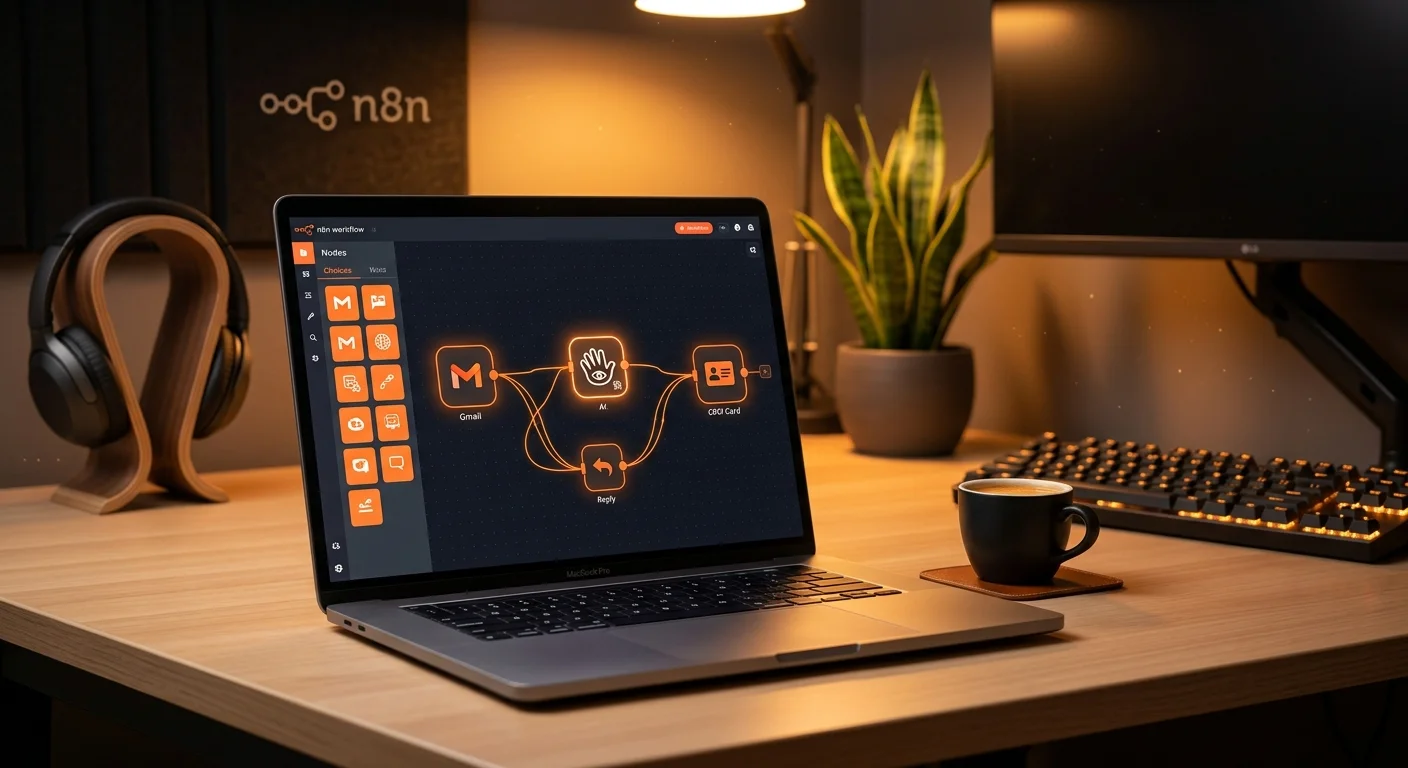
What you'll build
An n8n workflow that watches your Gmail inbox, passes each new email to Claude 3.5 Haiku, and gets back a classified category (refund / shipping / billing / technical / general) plus a drafted reply. The reply is saved as a Gmail Draft for your review. Optionally, a CRM record is created or updated in parallel. Total setup time: 2–3 hours for a first build, less if you follow this guide step by step.
Prerequisites: an n8n account (cloud or self-hosted), a Gmail account, and an Anthropic API key from console.anthropic.com. No coding experience required.
Steps in this tutorial
Step 1: Why Claude — and which model
Choosing between Claude models for email workflows
~5 min to decideClaude is the better choice over GPT-4o Mini for email tasks because of one specific capability: instruction-following precision. Claude follows multi-condition rules ("if the email mentions a refund AND the order is over 30 days old, do X; if under 30 days, do Y") more reliably than GPT models of similar cost, and produces more consistently structured output. For workflows where an incorrect action (wrong CRM update, off-tone reply) has real consequences, that reliability is worth the slightly higher cost.
Use Claude 3.5 Haiku for this tutorial. You can switch to Sonnet later if you find specific email types being handled incorrectly.
Step 2: Setting up credentials
Anthropic API key + Gmail OAuth in n8n
~20 minAnthropic API key: Go to console.anthropic.com → API Keys → Create Key. Copy the key — it starts with sk-ant-. In n8n, go to Credentials → New → Anthropic. Paste the key, name it (e.g., "Anthropic Production"), and save. Test the credential — n8n will ping the API to confirm the key works.
Gmail OAuth: In n8n, go to Credentials → New → Gmail OAuth2. You'll need a Google Cloud Console project with the Gmail API enabled and OAuth consent screen configured. n8n's credential documentation walks through this in detail. The short version: create a project in console.cloud.google.com, enable Gmail API, create OAuth Client ID credentials (type: Web application), add n8n's redirect URI, and paste the Client ID and Secret into n8n. Then click "Sign In With Google" and authorize the email account the agent will watch.
https://[your-n8n-domain]/rest/oauth2-credential/callback for cloud, or http://localhost:5678/rest/oauth2-credential/callback for local. Add this exact URI to the "Authorized redirect URIs" in Google Cloud Console, or the OAuth flow will fail.
Once both credentials are saved and tested, you're ready to build the workflow.
Step 3: Building the workflow canvas
Gmail Trigger → AI Agent node structure
~30 minCreate a new workflow in n8n. Add nodes in this order:
Gmail Trigger node settings:
- Resource: Message
- Event: Message Received
- Filters → Label/Mailbox: choose a specific label (e.g., "support") to limit scope, or leave empty to watch all incoming mail
- Filters → Exclude Label: add "SENT", "DRAFT" to avoid processing your own outgoing messages
- Poll Time: Every Minute (for near-real-time), or Every 5 Minutes (for lower API costs)
AI Agent node settings:
- Agent: Conversational Agent (best for email workflows)
- Chat Model: Anthropic Chat Model → select your Anthropic credential → Model: claude-3-5-haiku-20241022
- Prompt (Human Message): Map from Gmail Trigger — use the expression
{{ $json.text }}for the email body, combined with sender and subject fields - System Message: write your system prompt here (covered in Step 4)
For the Human Message input, format the email context clearly so Claude has all the information it needs:
Step 4: Writing the system prompt
The system prompt — where most of the work happens
~45 min to write and testThe system prompt defines the agent's entire behaviour: who it is, what it's allowed to do, how to handle each email type, and what format to return. This is the most important part of the build. A strong prompt produces consistent, accurate output. A vague one produces unpredictable results.
Here is a real-world template you can adapt:
Two things to customize before going live: replace all bracketed placeholders, and fill in the PRODUCT KNOWLEDGE section with the actual information Claude needs to answer product questions accurately. The more specific the rules, the less often the agent will produce a reply that needs editing.
Step 5: Wiring tools and output
Gmail Draft output + optional CRM update
~30 minAfter the AI Agent node, add a Code node (a simple one — just 3 lines) to parse the JSON output from Claude:
Then add a Switch node to route based on {{ $json.needs_human_review }}:
- If
false→ Gmail: Create Draft (saves the reply for your quick review) - If
true→ Slack: Send Message (notifies you with the email summary and reason for review)
Gmail: Create Draft node settings:
- To:
{{ $('Gmail Trigger').item.json.from.value[0].address }} - Subject:
Re: {{ $('Gmail Trigger').item.json.subject }} - Message:
{{ $json.draft_reply }} - Reply To: map the original message ID using
{{ $('Gmail Trigger').item.json.id }}— this threads the reply correctly in Gmail
Optional — CRM node (HubSpot or Notion): Add in parallel after the Switch node. Create a contact record with email address, category, and a note containing the draft reply. This builds a log of all agent actions even if you edit the draft before sending.
Step 6: Testing and going live
Manual testing → live activation
~30 minBefore activating the workflow, test it manually on real emails. In n8n, use the "Execute Step" function to run each node individually. For the Gmail Trigger, use "Fetch Test Event" to pull a real recent email. Then run the AI Agent node with that data and inspect what Claude returns.
Check three things in the output:
- Is the
categorycorrect for this email type? - Is the
draft_replysomething you'd actually send? - Does the JSON parse cleanly — no extra text outside the JSON structure?
If Claude returns text outside the JSON (common on first runs), add this line to your system prompt: "Return only the JSON object. No explanation, no preamble, no markdown code fences. Start your response with { and end with }." This eliminates malformed output in almost all cases.
Once 8–10 test emails produce correct output, activate the workflow. Monitor the Gmail Drafts folder for the first 48 hours — check every draft before sending. After 1–2 weeks of monitoring, you'll have a clear picture of which email types the agent handles perfectly and which need occasional editing. Adjust the system prompt for the latter.
Learn to Build This End-to-End
LearnForge's AI Apps course walks through the full build — credentials, AI Agent node, tool wiring, system prompts, error handling, and production deployment. Module 0 is free.
Start Free Module →Step 7: Cost breakdown and scaling
Claude 3.5 Haiku pricing: $0.80 per million input tokens, $4 per million output tokens. A typical email interaction (incoming email ~300 words, system prompt ~500 words, output ~200 words) uses roughly 1,200 input tokens and 300 output tokens.
Cost per email: (1,200 × $0.80 + 300 × $4) / 1,000,000 ≈ $0.0022 per email. At 100 emails/day: $0.22/day, $6.60/month. At 500 emails/day: $33/month in API costs alone — at that volume, consider whether Claude 3.5 Haiku is still the right model or whether a more aggressive filtering layer should pre-screen emails before sending them to Claude.
Total monthly cost for a typical small business (50–150 emails/day): Claude API $1–4 + n8n cloud $20 = $21–24/month for a continuously running email agent. Self-hosted n8n ($6/month VPS): $7–10/month total.
FAQ
Related Articles
What is an AI Agent? Plain English Guide for Non-Coders
The fundamentals — what agents are, how they work, and what they can do for a business.
n8n for Small Business: 8 Automations to Set Up This Week
8 practical workflows that save 10–20 hours per week — all buildable without coding.
n8n for Beginners: 7 Things to Know Before Starting
Nodes, triggers, expressions, credentials — the n8n fundamentals in plain language.
Build Your n8n + Claude Agent Today
LearnForge's AI Apps course covers every step in this tutorial and more — credential setup, AI Agent node mastery, prompt engineering, error handling, and production deployment. Start free.
Start Free Module →